
Mapping Enhanced
Released
A collection of editor tools and quality-of-life improvements for s&box level design and mapping workflows.
Features
🥧 Pie Menus
Blender-style radial menus for quick access to common tools.
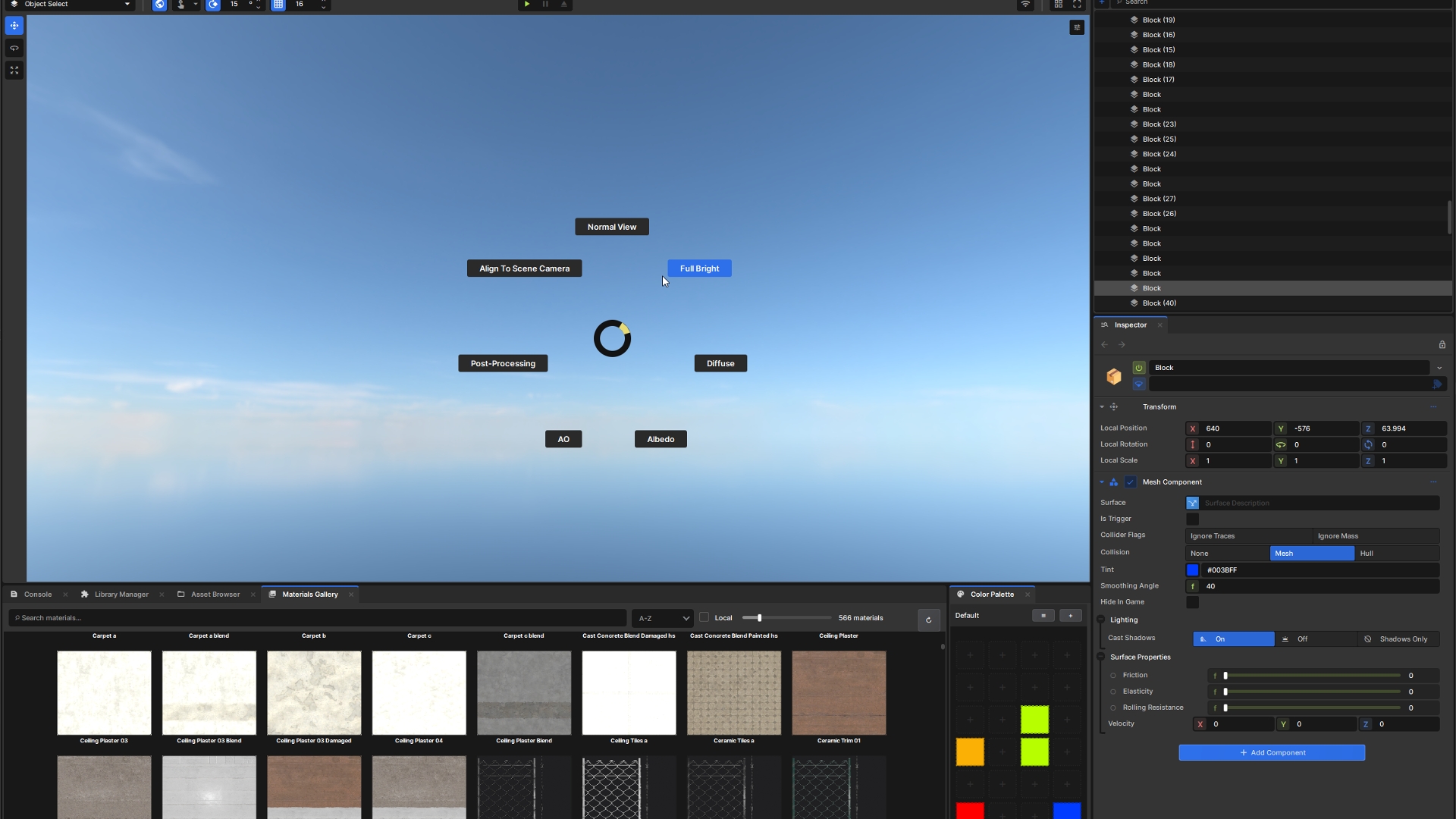
Render Pie Menu (Forward Mouse Button)
Render Pie Menu (Forward Mouse Button)
- Normal View, Full Bright, Diffuse, Albedo, AO render modes
- Toggle Post-Processing
- Align to Scene Camera
Mapping Pie Menu (Back Mouse Button)
- Quick switch between Object, Vertex, Edge, and Face selection modes
- Automatically activates the Mesh Tool if not active
Both menus feature:
- Configurable mouse button and modifier key triggers
- Adjustable menu size
- Smooth indicator animation
- Nearest-button selection for precision
🎨 Materials Gallery
Browse and apply materials from cloud organizations directly in the editor.
- Configure default and additional organizations to search
- Search and filter materials
- Thumbnail previews with lazy loading
- Double-click to apply material to mesh tool
💾 Auto-Save
Automatic backup system to prevent losing work.
- Configurable save interval (1-60 minutes)
- Saves to autosave/ folder next to your scene
- Timestamped backups: SceneName_2026-02-06_14-30-00.scene
- Automatic cleanup of old backups (configurable limit)
- Optional progress notification
- Force save via menu: Editor > Mapping Tools > Force Auto-Save
📋 Enhanced Paste (Ctrl+V)
- Paste Color: Copy a hex color (#FF5500) and paste to apply it to selected MeshComponents and ModelRenderers
- Paste at Mouse: Copy GameObjects and paste them at the mouse cursor position in the scene
⚙️ Settings Window
Centralized configuration: Editor > Mapping Tools > Settings
- Materials Gallery organizations
- Render Pie Menu bindings & size
- Mapping Pie Menu bindings & size
- Auto-Save options
- Double Click on Mesh to enter mapping mode.