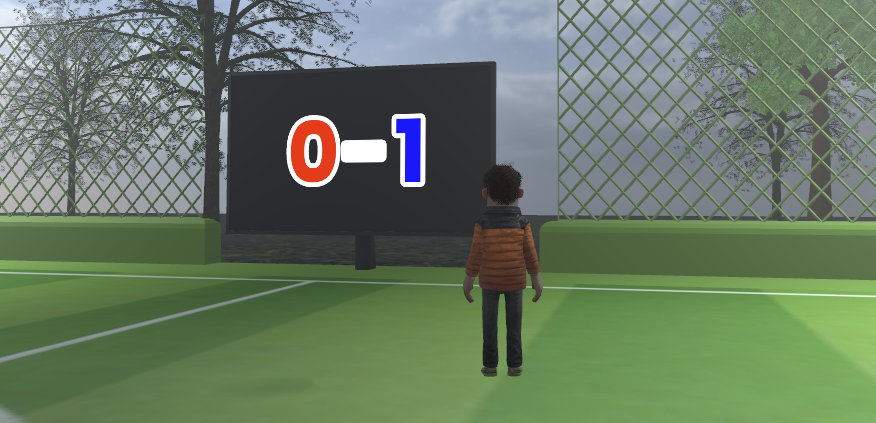
When creating multiplayer games in s&box, you’ll often want to display networked values on the screen - such as scores, timers, or kill counters.
This beginner tutorial shows the simplest way to display synced variables in UI using Razor.
Note: This is the most basic setup. There are more advanced and scalable approaches once you become more comfortable with networking and UI.
This beginner tutorial shows the simplest way to display synced variables in UI using Razor.
Note: This is the most basic setup. There are more advanced and scalable approaches once you become more comfortable with networking and UI.
1. Sharing your variable across the network
In this example, we’re creating a football game with a ScoreManager component that stores each team’s score.
To sync a variable across the network, add the [Sync] attribute above it:
To sync a variable across the network, add the [Sync] attribute above it:
[Sync]
public int RedTeamScore { get; set; }

[Sync]
public int BlueTeamScore { get; set; }
Any client connected to the game will now receive updated values for these variables.
2. Add the component to a networked GameObject
Create a new GameObject in your scene and attach your ScoreManager.cs component to it.
For example:
For example:
ScoreManager
└── ScoreManager.cs
Now the GameObject itself needs to be networked.
- Select the GameObject
- In the Inspector, click the Wi-Fi icon
- Change the following settings:
Network Mode:
Orphaned Mode:
Owner Transfer:
Network ObjectOrphaned Mode:
HostOwner Transfer:
Takeover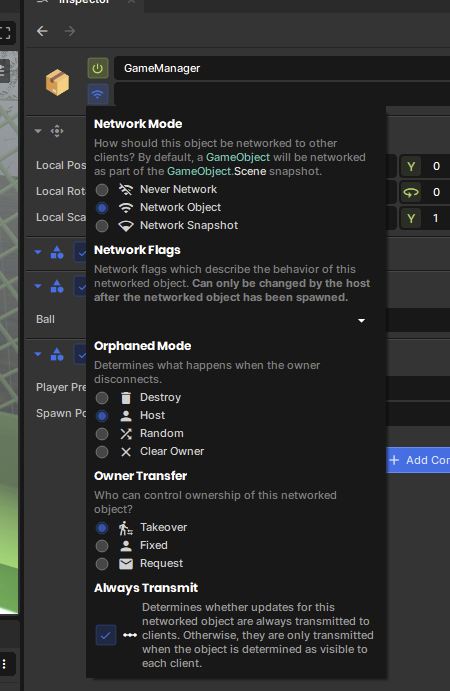
Now we can display the synced scores on screen. In your scene: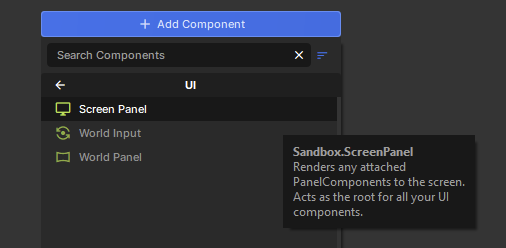
- Create a new GameObject:
- UI > Screen
- Add a Razor UI component
- Add Component > UI > Screen Panel
- Open the generated Razor file and replace it with this:
@using Sandbox;
@using Sandbox.UI;
@inherits PanelComponent
@namespace Sandbox

<root>
	<div>
		<p>@ScoreManager.RedTeamScore</p>
		<p>-</p>
		<p>@ScoreManager.BlueTeamScore</p>
	</div>
</root>

@code
{
	[Property] public ScoreManager ScoreManager { get; set; }

	protected override int BuildHash() => System.HashCode.Combine( ScoreManager.RedTeamScore, ScoreManager.BlueTeamScore );
}
Let's understand what is happening with this code.
Referencing the ScoreManager
Referencing the ScoreManager
[Property]
public ScoreManager ScoreManager { get; set; }
This exposes a field in the Inspector so you can drag your ScoreManager GameObject into the UI component.
After saving the script, don’t forget to assign the reference in the Inspector.
Updating the UI when values change
After saving the script, don’t forget to assign the reference in the Inspector.
Updating the UI when values change
protected override int BuildHash()
BuildHash() tells Razor when the UI should refresh.
By combining the synced score variables into the hash, the UI automatically updates whenever either score changes.
By combining the synced score variables into the hash, the UI automatically updates whenever either score changes.
System.HashCode.Combine(
    ScoreManager.RedTeamScore,
    ScoreManager.BlueTeamScore
);
Displaying values in Razor
Inside the <root> block, you can display C# values directly in HTML-like markup:
Inside the <root> block, you can display C# values directly in HTML-like markup:
<p>@ScoreManager.RedTeamScore</p>
The @ symbol lets you insert C# values into the UI.
You can later add CSS classes, IDs, animations, and styling to improve the appearance of your scoreboard.
You can later add CSS classes, IDs, animations, and styling to improve the appearance of your scoreboard.
Conclusion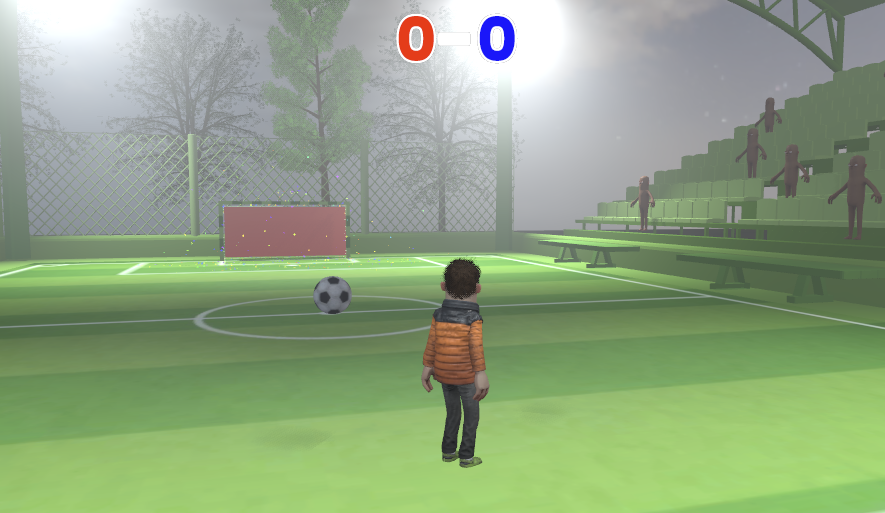
You now have a basic networked scoreboard working in s&box. This same approach can also be used for:
- Match timers
- Kill counters
- Health values
- Team names
- Objective progress
You can also use a World UI instead of a Screen UI if you want the scoreboard to appear physically inside the game world: