
Ozmium MCP Server
Released
Ozmium MCP Server bridges your AI coding assistant and the S&box editor using the Model Context Protocol. Your AI can see and manipulate everything in the editor — live, in real time, with zero copy-pasting.
What can your AI do with this?
🔍 Read your scene — Query GameObjects by name, tag, component, path, or spatial radius. Inspect any component's runtime property values. Get a full scene summary or walk the hierarchy.
✏️ Edit your scene — Create and destroy GameObjects, add/remove components, set property values (string, bool, int, float, Vector3, enum), reparent objects, manage tags, instantiate prefabs, and save.
📦 Browse your assets — Search models, materials, prefabs, sounds by type or name. Inspect model bones and attachments, read material shaders, view prefab structures, and force-reimport assets.
🎮 Control the editor — Start/stop play mode, select objects in the hierarchy, open assets in their editor, read the editor log, enumerate and set console variables, undo/redo.
Key Features
- 31 tools covering scene read, scene write, asset queries, editor control, and console access
- Disabled-object aware — custom recursive walker finds objects inside disabled subtrees (unlike
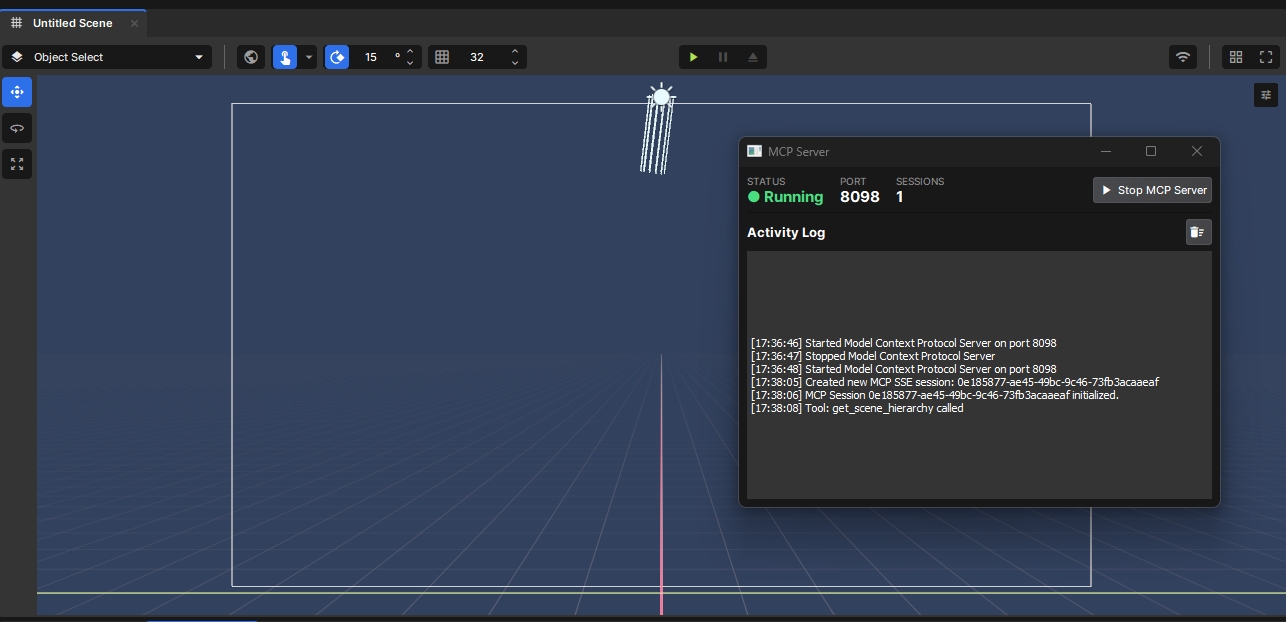
GetAllObjects) - Built-in Editor UI — live status, session count, and activity log via
Editor → MCP → Open MCP Panel - Localhost-only SSE transport on port
8098— lightweight, secure, nothing leaves your machine - Error-safe — all tools return errors as text content, never crashing the SSE connection
Setup
- Install — add Ozmium MCP Server via the S&box Library Manager
- Open the panel —
Editor → MCP → Open MCP Panel - Start the server — click Start MCP Server (status turns green)
- Connect your AI — add to your MCP config:
json

{
 "mcpServers": {
   "sbox": {
   "url": "http://localhost:8098/sse",
 "type": "sse"
  }

  }

}- Done. Your AI assistant now has full access to all 31 tools.