
SubTerrain Tool
Released
Terrain Tools made Right
SubTerrain Tool
What it does
Sculpt Tools
- Raise / Lower — paint height up or down. Hold Ctrl to invert.
- Smooth — blend neighboring heights for softer terrain.
- Flatten — level to the height under the cursor (locks to a plane while dragging).
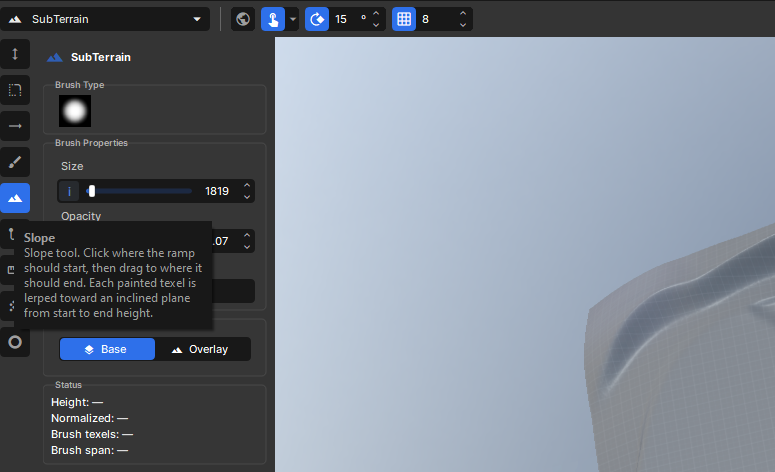
- Slope — click start, drag to end; grades from start height to end height along the line.
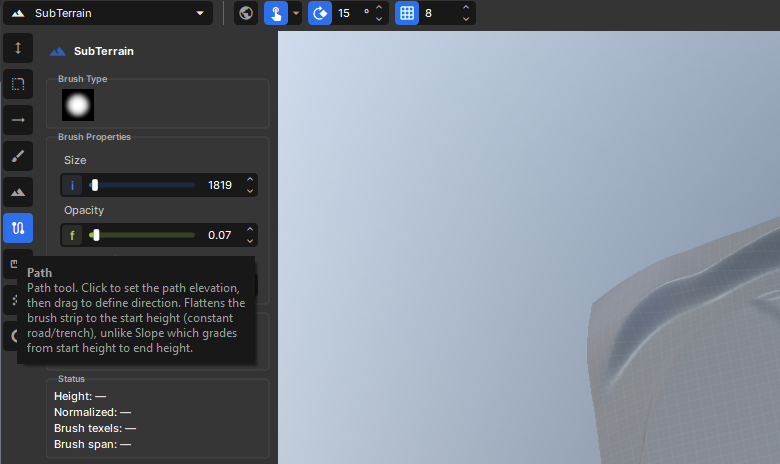
- Path — click start, drag direction; keeps a constant elevation strip (road/trench style).
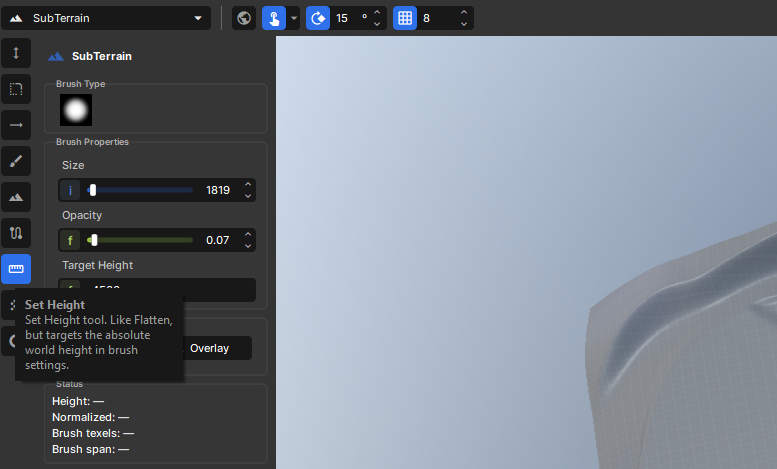
- Set Height — flatten to an absolute world height from brush settings.
- Noise — add procedural variation. Hold Ctrl to invert.
- Hole — remove surface and collision in the brush area (per-texel punch-through, not enclosed volumes).
Brush & preview
- Large brushes — size up to 32,000 units
- Brush preview on the terrain surface, matching the built-in terrain tool.
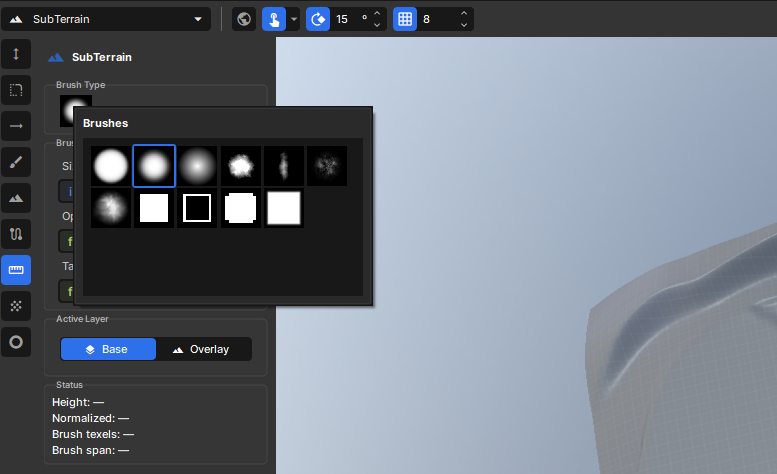
- Square masks included (hard, soft, rounded, outline); also uses the shared engine brush list.
How to use it
- Add the library.
- Open a scene with a Terrain component and select it.
- Activate SubTerrain from the scene tools.
- Pick a sub-tool from the toolbar or press 1–9.
- Choose a brush mask and adjust Size / Opacity in the sidebar.
- Left-click and drag on the terrain to sculpt or paint. Hold Ctrl on supported modes to invert.
Keyboard shortcuts
| Key | Tool ||-----|------|| 1 | Raise / Lower || 2 | Smooth || 3 | Flatten || 4 | Paint Texture || 5 | Slope || 6 | Path || 7 | Set Height || 8 | Noise || 9 | Hole |Credits
Made by the SubZero Studios team.


Programming Programming