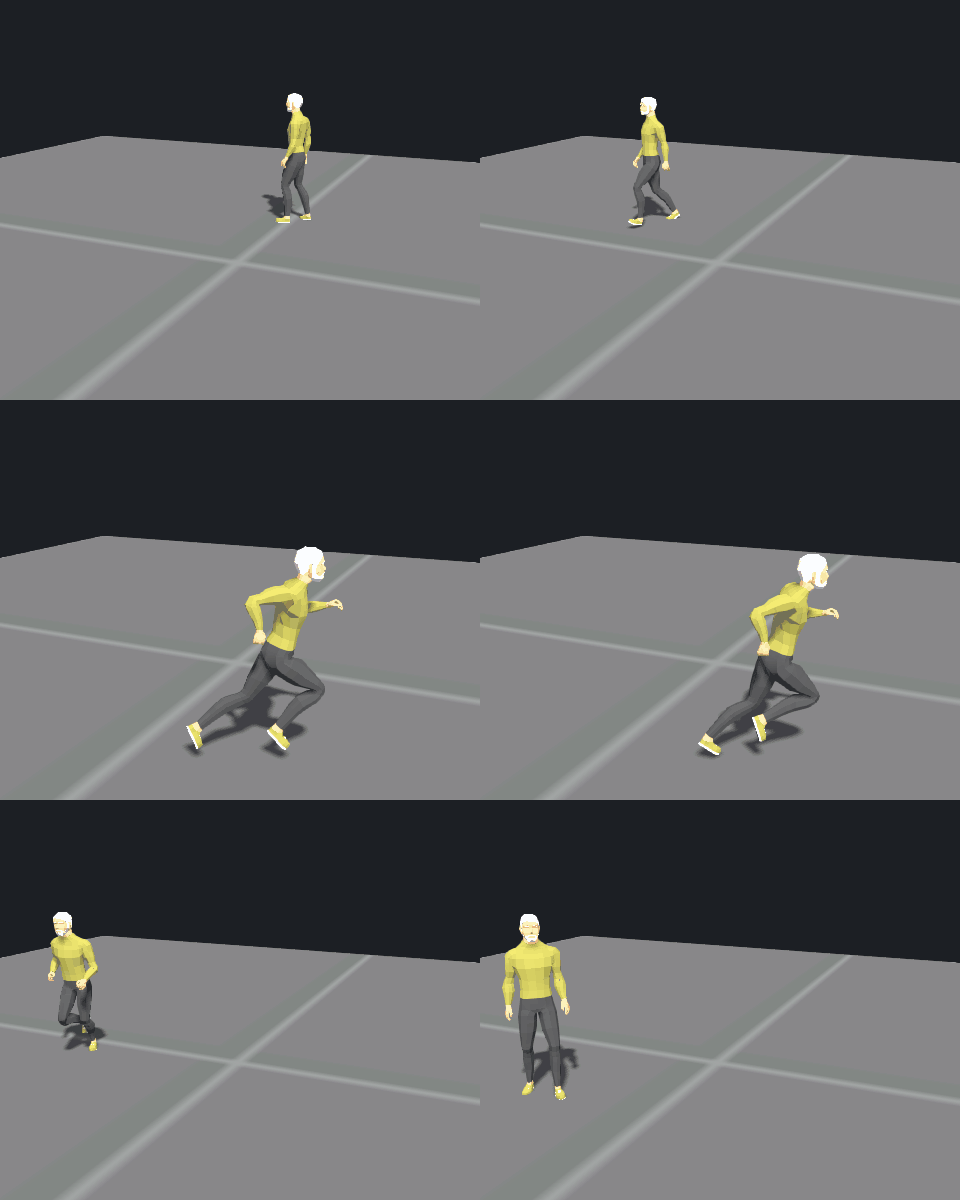
This guide turns an unrigged humanoid model into an s&box player model that plays the stock Citizen animations. You rig the model with Humanoid Rigger, then give it the animations with Humanoid Retargeter.
Before you start
Install the libraries. In the editor, open View > Library Manager, search for Humanoid Rigger and Humanoid Retargeter, and install both. Each one adds its own window to the View menu.
Get a model. Any humanoid in `.fbx`, `.obj`, `.gltf` or `.glb` works, as long as it:
- has no skeleton yet, (going the smart port route, the model can have a skeleton it doesn't matter) - stands in a T-pose or an A-pose, - is inside your project's `Assets` folder.
Part 1: Rig the model
1. Import
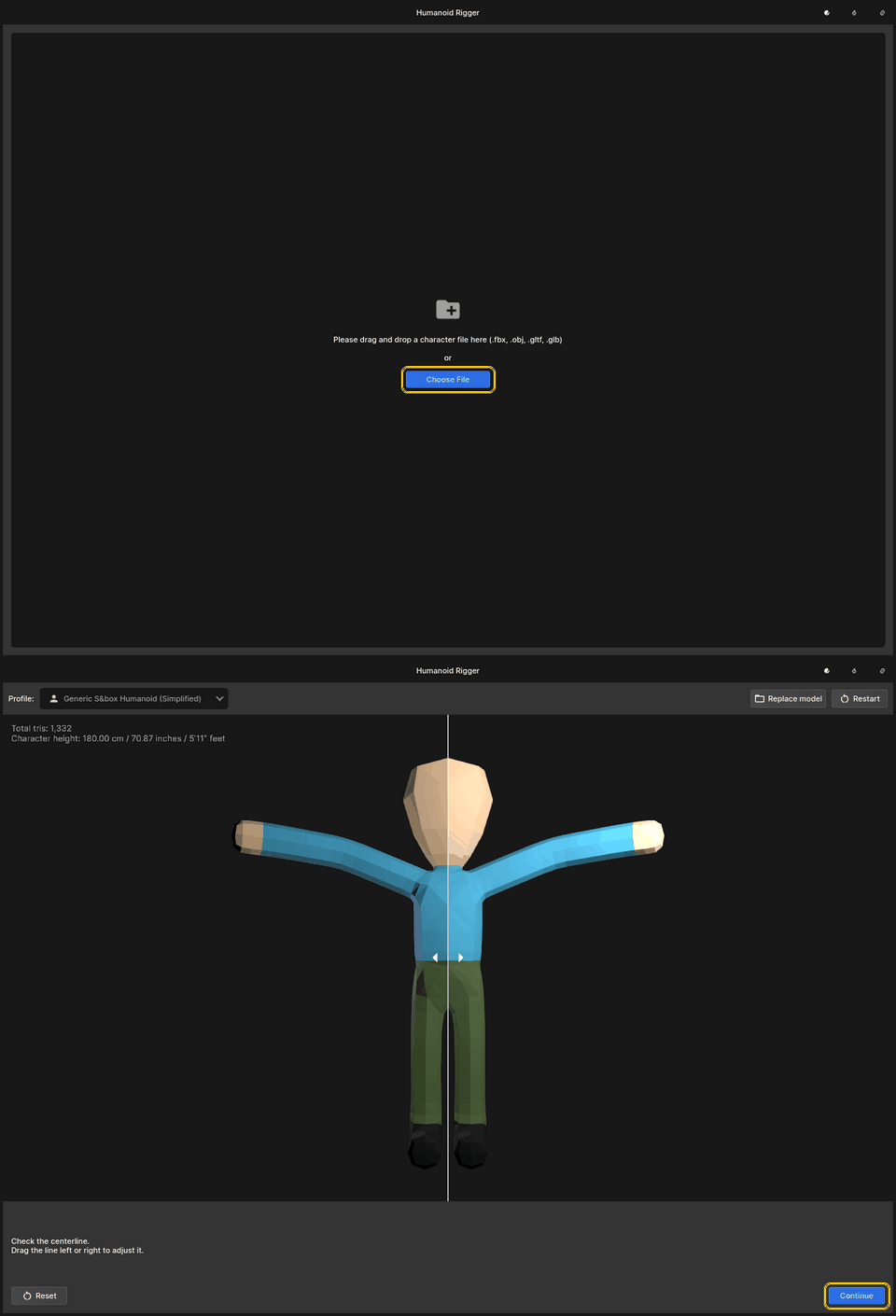
Open View > Humanoid Rigger and click Choose File (or drop the file onto the window).
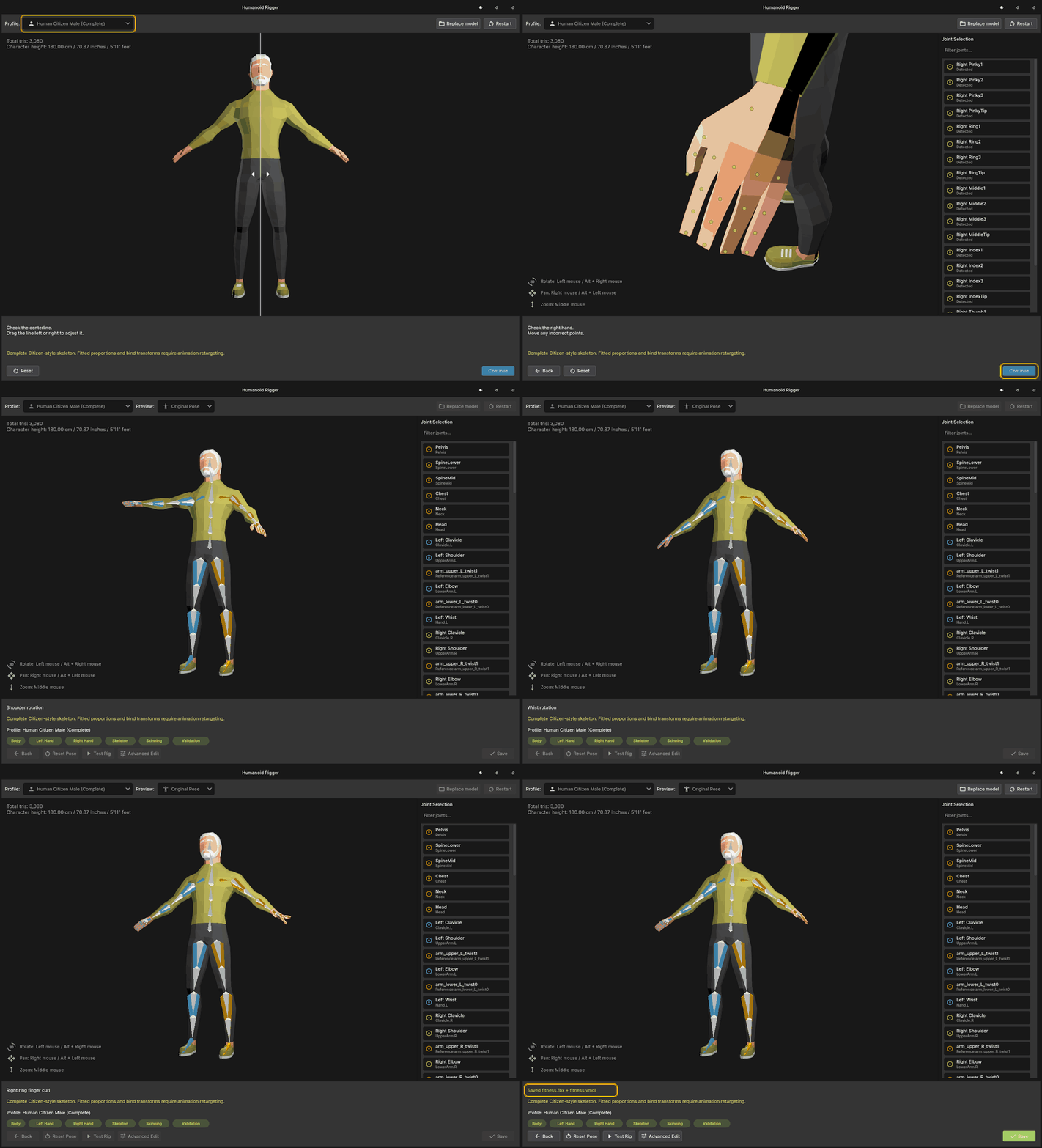
The rigger draws a line down the middle of the body. If it isn't centred, drag it into place. Then click Continue.
The Profile at the top sets the skeleton's bone names. Leave it on Generic S&box Humanoid to use Smart Port (Part 2). For Create Citizen animation model, see Part 3 before you continue.
2. Check the points
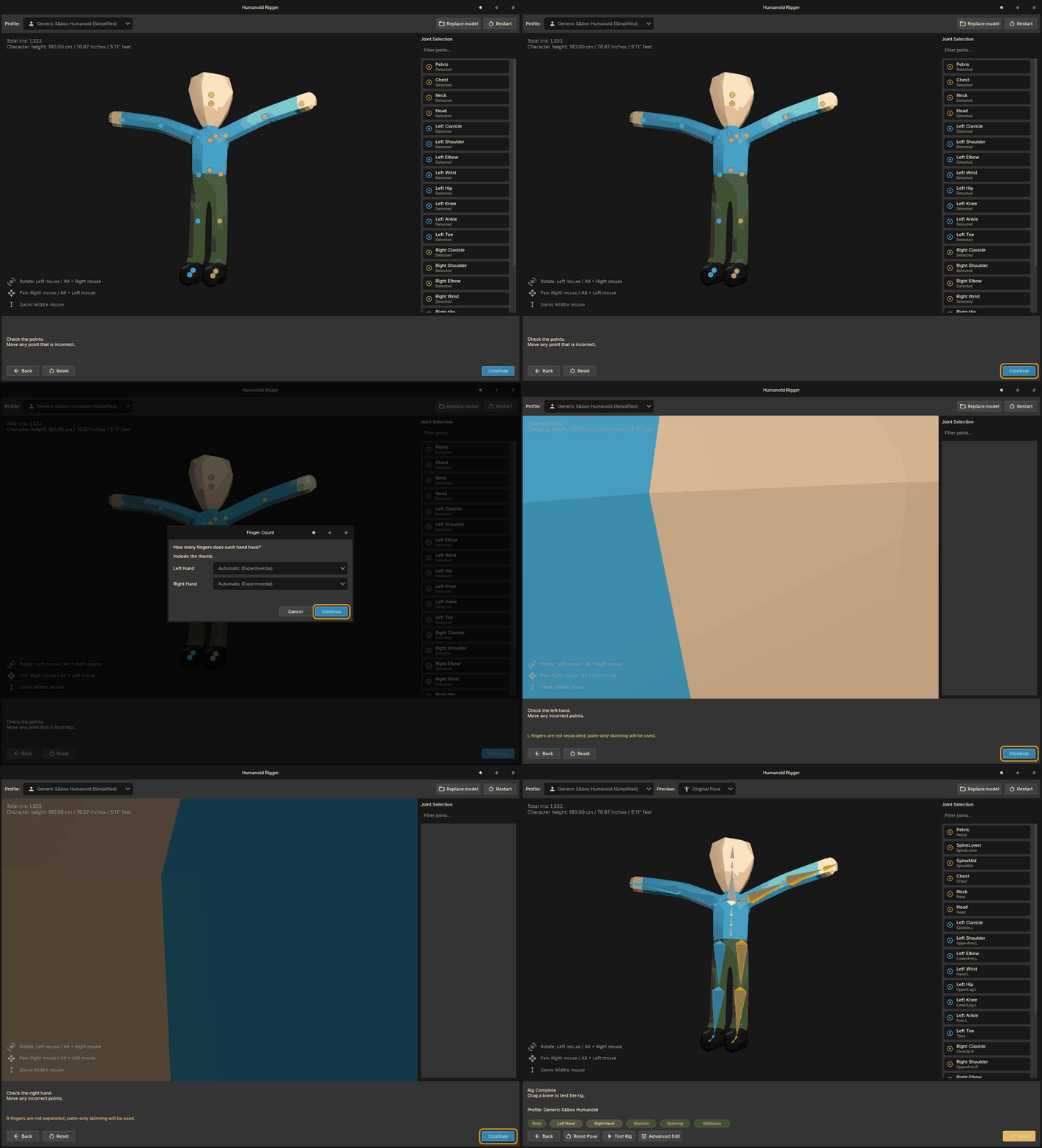
The rigger puts a point on every joint. Compare each point with the model and drag any that are off. Use these controls:
- Rotate: left mouse - Pan: right mouse - Zoom: middle mouse
Click Continue when the points look right.
Next, say how many fingers each hand has, counting the thumb, or leave it on Automatic. Then check the left hand and the right hand the same way, clicking Continue after each one. A hand without separate fingers is skinned to the palm only.
When you finish the right hand, the rigger builds the skeleton.
3. Test the rig
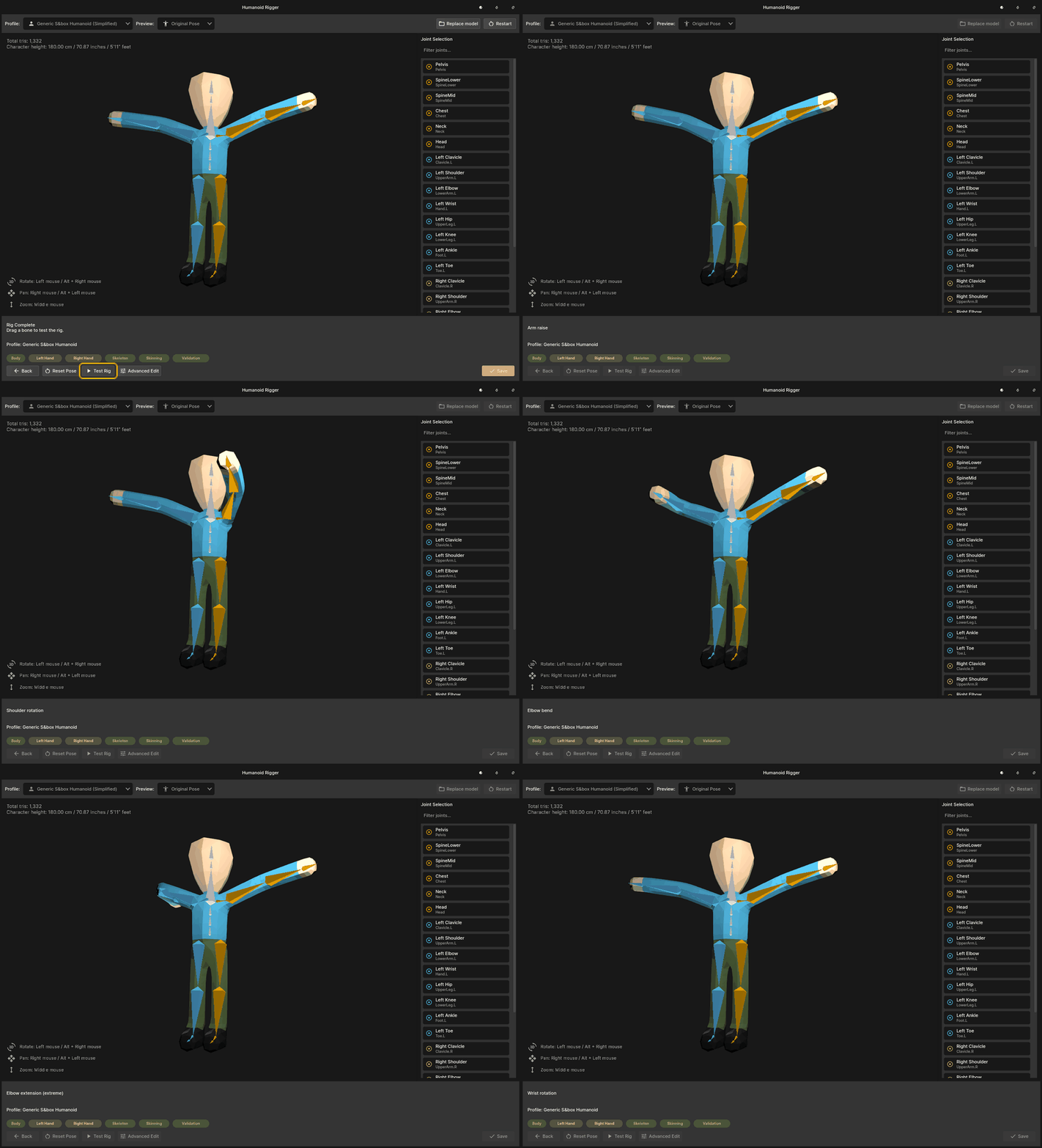
Click **Test Rig** to play a set of poses, or drag any bone to bend it. If a joint bends in the wrong place, click **Back** and move its point.
4. Save
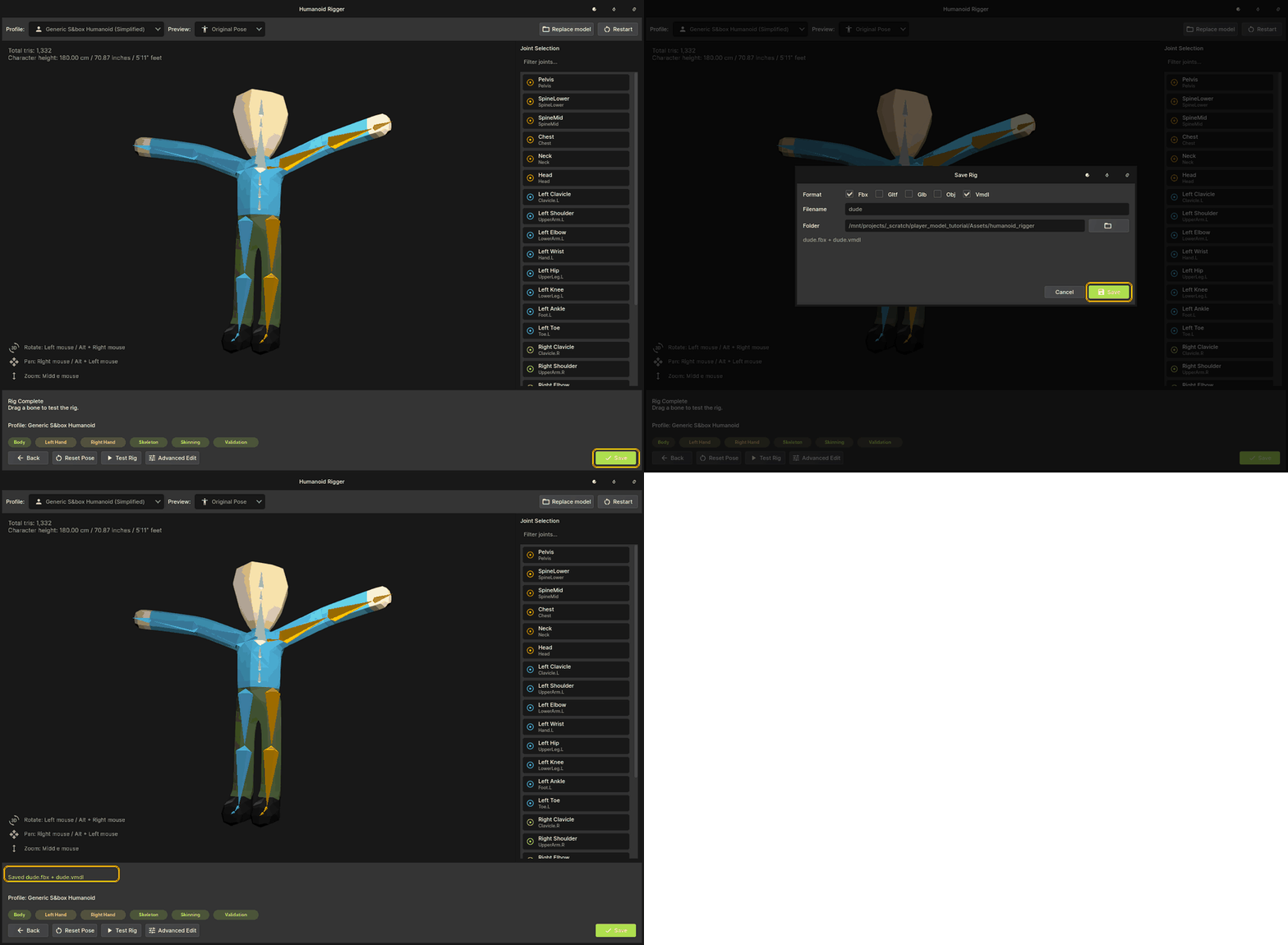
1. Click Save. 2. Keep Fbx and Vmdl ticked. 3. Name the rig and click Save.
The rig is written to `Assets/humanoid_rigger/` as `<name>.fbx` and `<name>.vmdl`. Your model now has a skeleton but no animations. Parts 2 and 3 give it the stock ones. Use either method:
- Smart Port works with any rig from Part 1. - Create Citizen animation model gives the most complete result, but needs one extra step in the rigger.
Part 2: Smart Port
Smart Port copies another model's whole animation setup onto your character: its animations, events and animgraph.
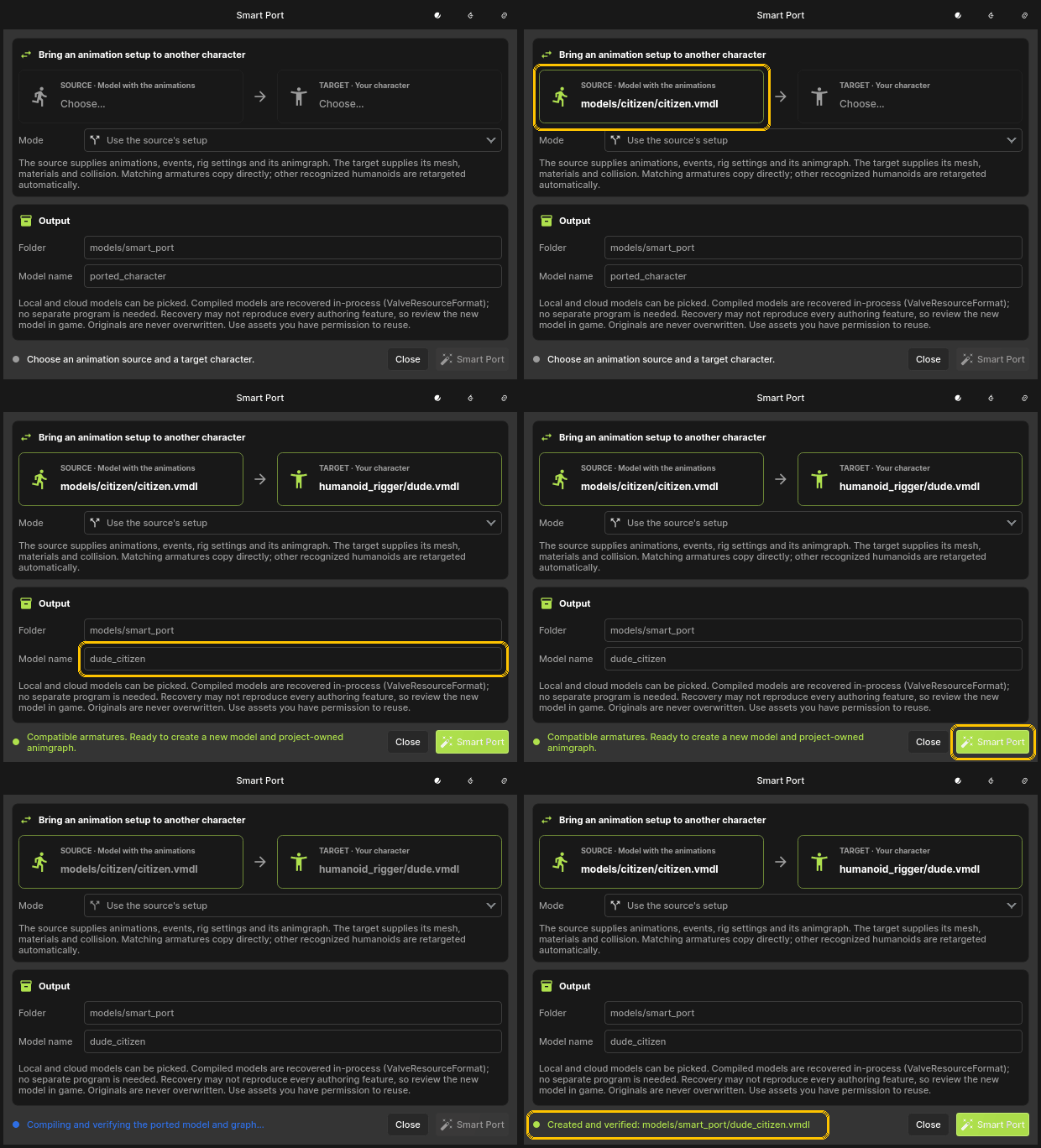
1. Open View > Humanoid Retargeter and click Smart Port…. 2. Set SOURCE, the model with the animations, to `models/citizen/citizen.vmdl`. 3. Set TARGET to the `.vmdl` you saved in Part 1. 4. Leave Mode on Use the source's setup. 5. Choose an output Folder and Model name. 6. Click **Smart Port** and wait for Created and verified.
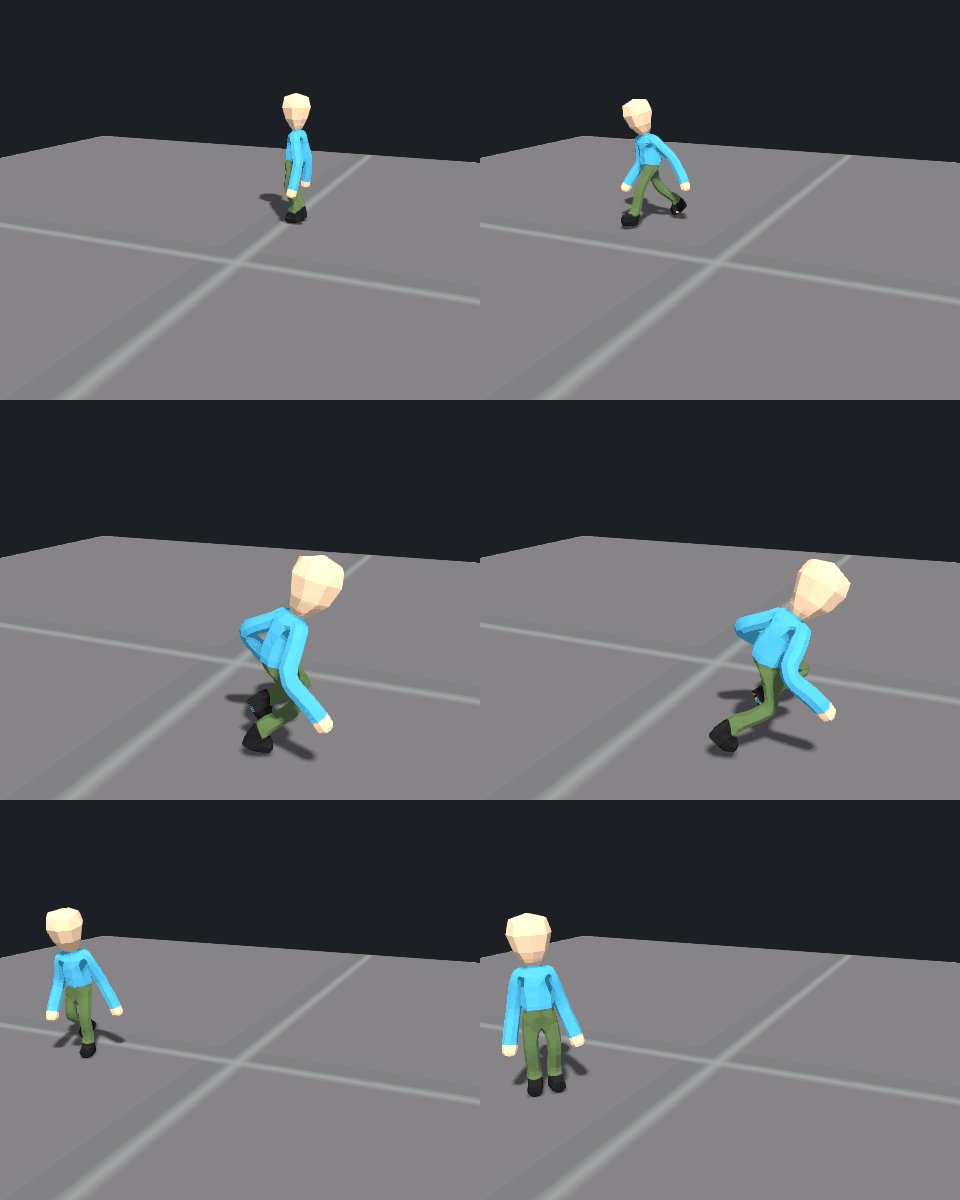
The result walks, runs and stops with the Citizen's animgraph:
Part 3: Create Citizen animation model
This turns your character into a full stock Citizen: every animation, the Citizen animgraph, IK and helper bones.
The extra rigger step: use a Complete profile
Before you start Part 1, set Profile to Human Citizen Male (Complete) or Human Citizen Female (Complete). Use Citizen (Complete) for the classic Citizen.
A Complete profile builds the Citizen's exact skeleton, including every finger and twist bone, so a model with separate fingers works best. Then check the points, test and save as in Part 1.
Create the model
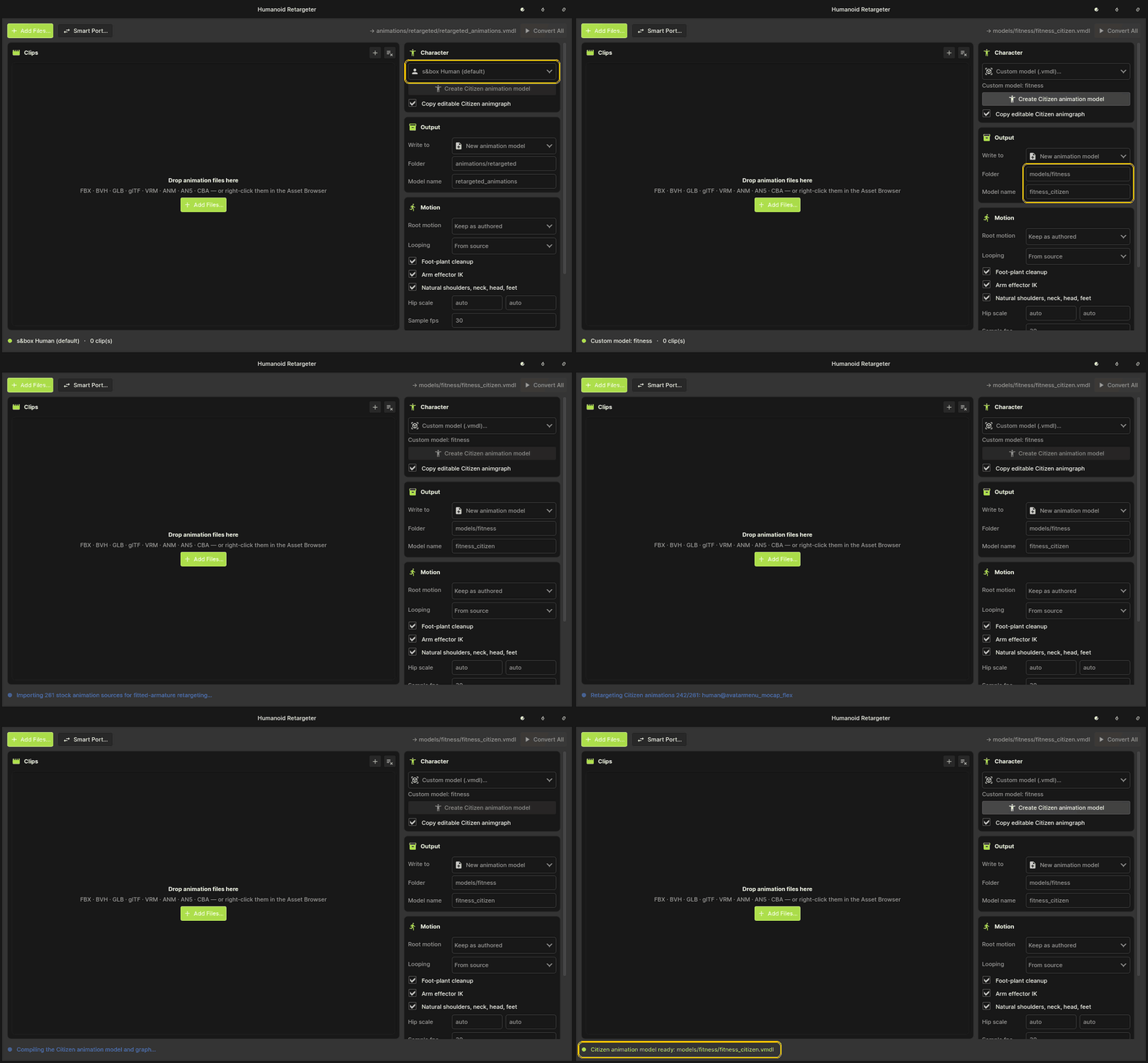
1. In Humanoid Retargeter, setCharacter to Custom model (.vmdl)… and pick the rig you saved. 2. Set the output Folder and Model name. 3. Click Create Citizen animation model. The button only turns on for rigs made with a Complete profile. 4. Wait for Citizen animation model ready. It retargets all 261 stock animations, which takes a couple of minutes.
Leave Copy editable Citizen animgraph ticked to get your own copy of the animgraph, in a `graphs` folder next to the model, ready to edit.