In this tutorial we’ll build a simple playable room using the Mapping tools. We will be using the Sandbox Game as it contains everything to get us started you can read how to set up your project Here - https://sbox.game/learn/facepunch/map-project
Opening the Mapping Tools
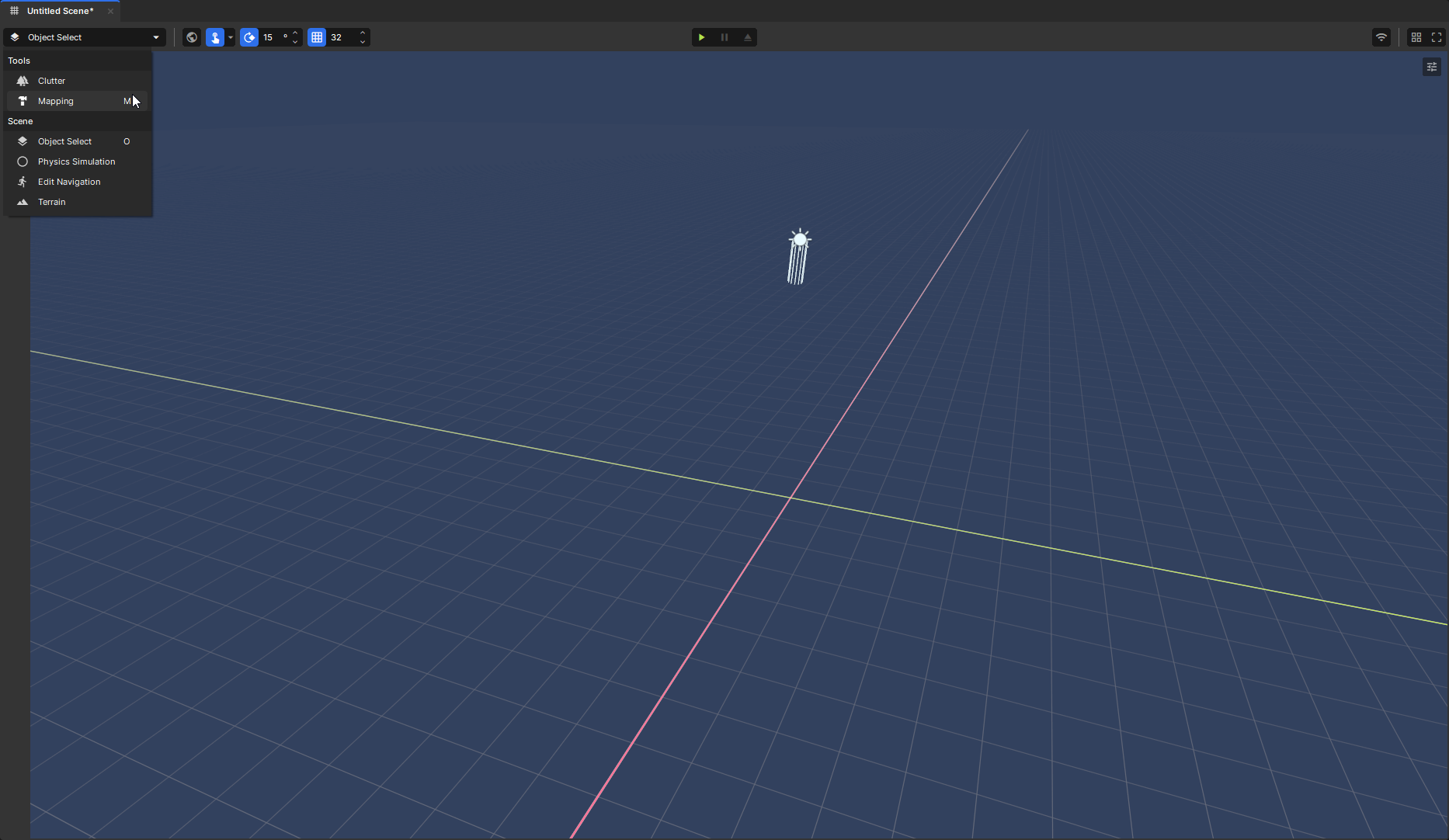
Open the Mapping tools by either pressing M or using the top dropdown menu
Creating a Primitive
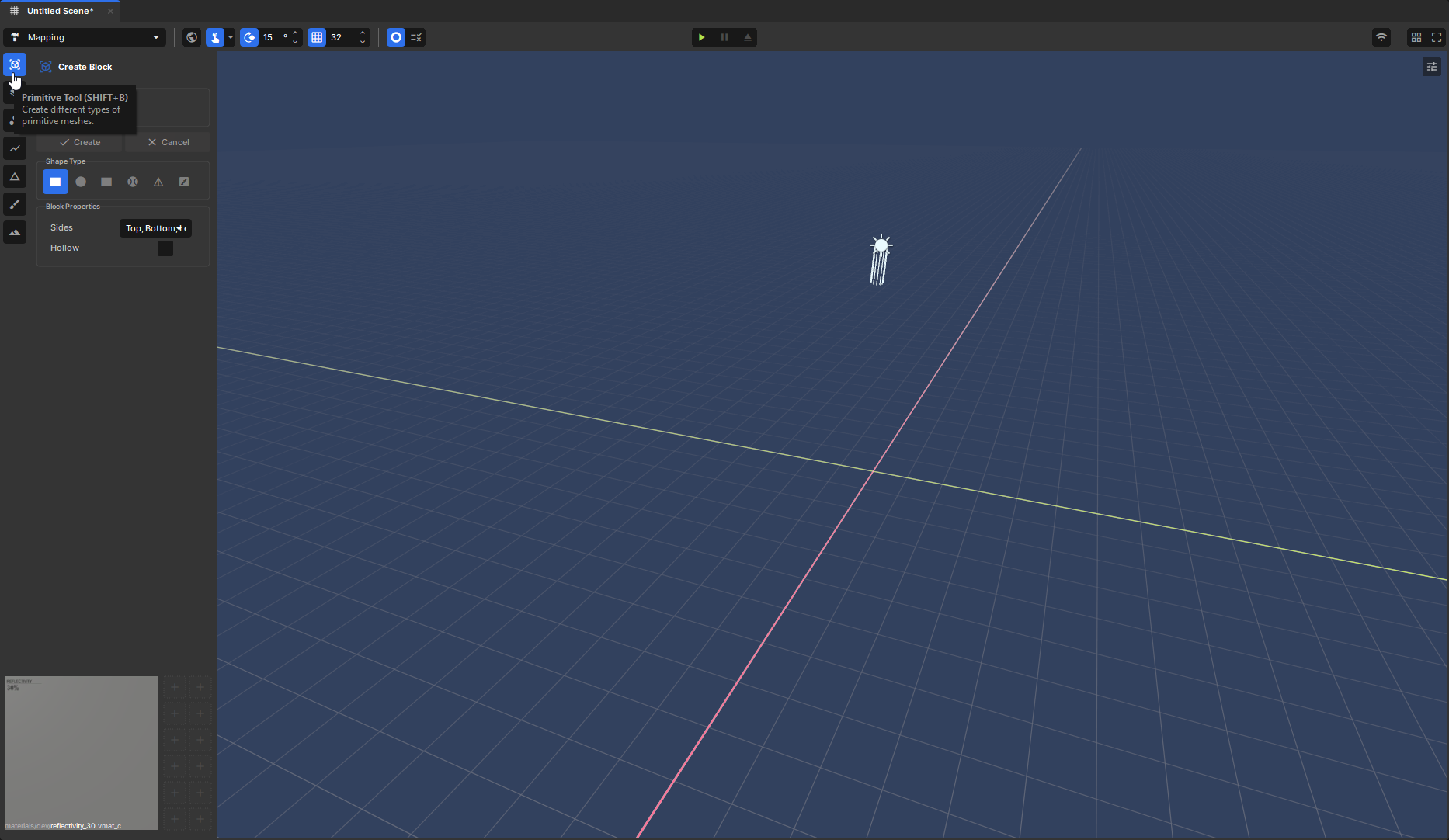
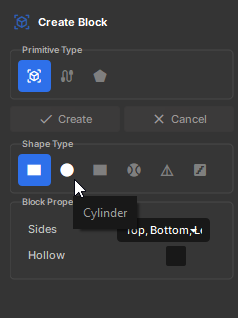
Press Shift + B or select the Primitive Tool icon on the toolbar. You’ll see several primitive shapes available:
Block
Cylinder
Sphere
Stairs
More
For this tutorial we’ll use the Block option.
Grid
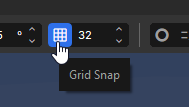
Before building, increase the grid size. This can be done with [ and ] (For smaller and bigger), It'll snap to powers of 2, Let's make it 128 which is a good size to start with and make sure grid snapping is enabled.
If you have Grid Snap off, holding Ctrl will snap it - The same works the other way around, with it on holding Ctrl disables it while held.
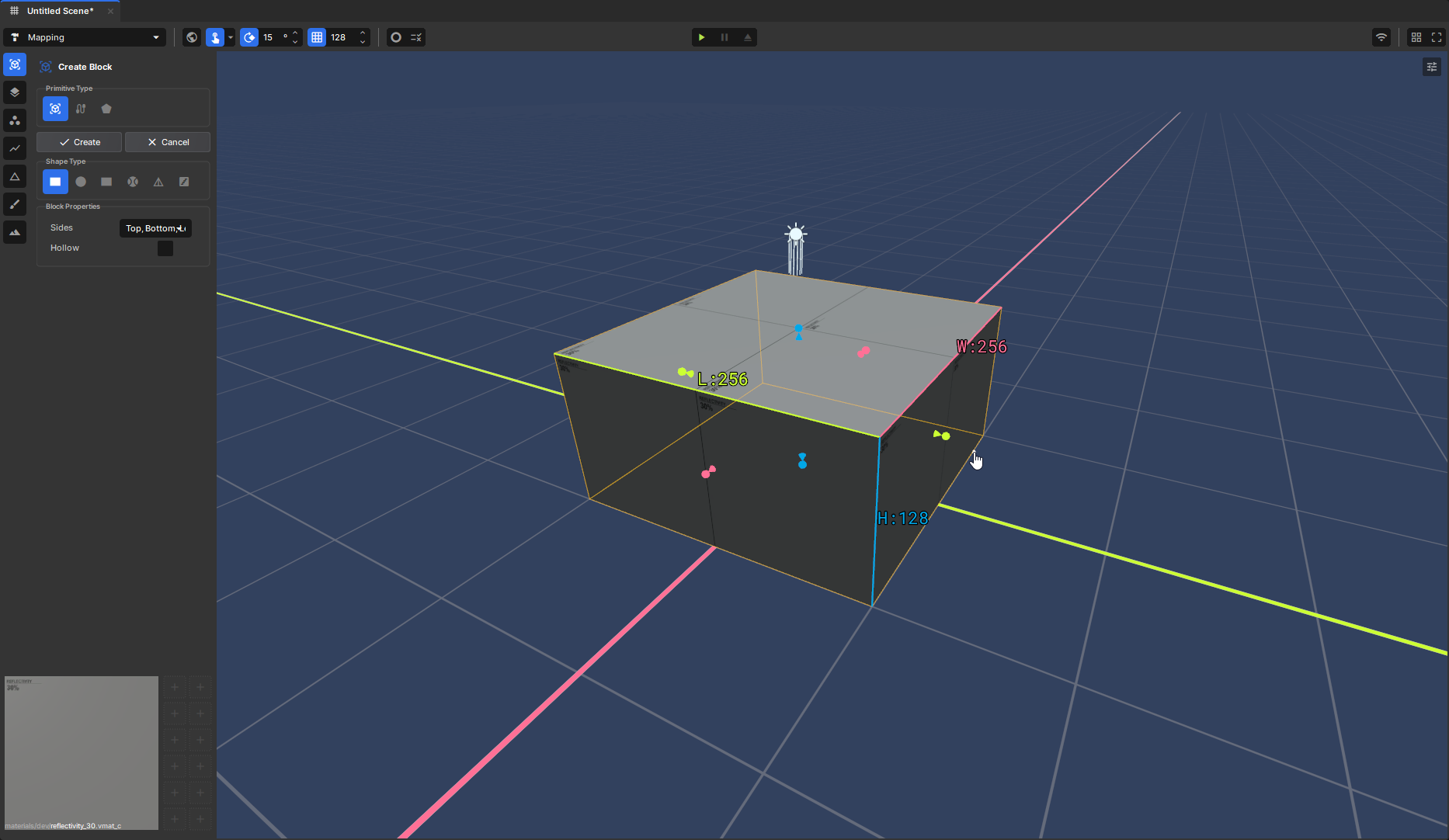
Let's now draw our block out, Click and Drag in the viewport. You'll get a preview of the size and shown the dimensions. Release will show you the block in 3d.
Using the handles you can change the size of each side.
Pressing Enter will create it.
You have successfully created your first block.
Turning it into a Room
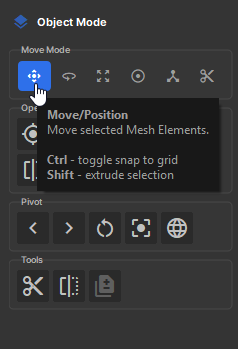
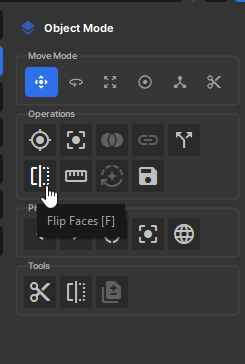
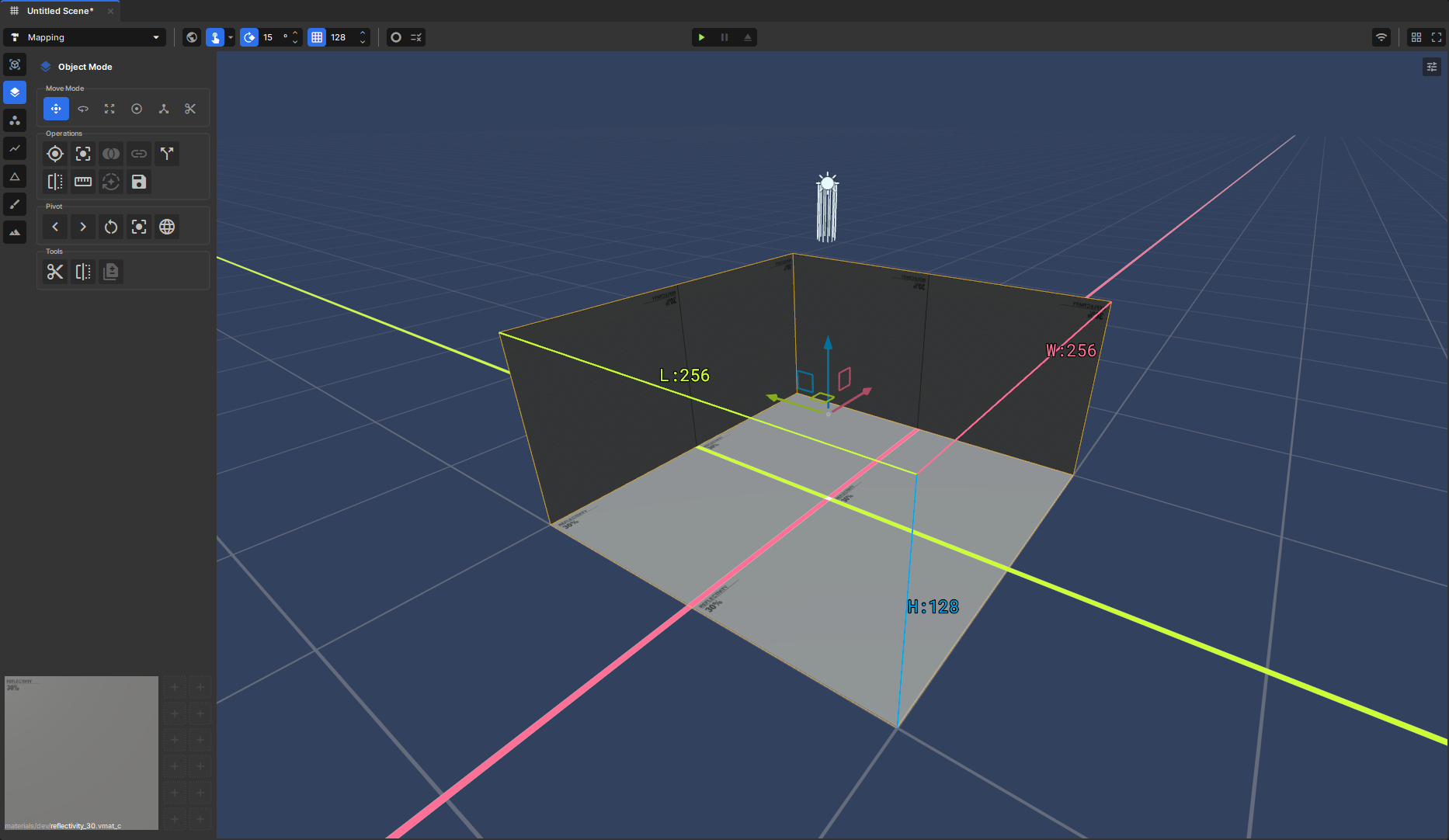
After creating the block the editor will automatically switch to object mode, this will let's you move, rotate ect. Let's make sure our block is selected and press F or Flip Faces.This will flip the direction of all the faces inwards creating a empty room.
In s&box lighting doesn't get block by back faces (Unless it is solid) meaning that light will pass through walls that aren't 2 sided. Basically if you can see through it so can lights.
Creating a Spawn Point
In the Sandbox game, Players spawn from a spawn point. We need to add some to tell the game where we should spawning.
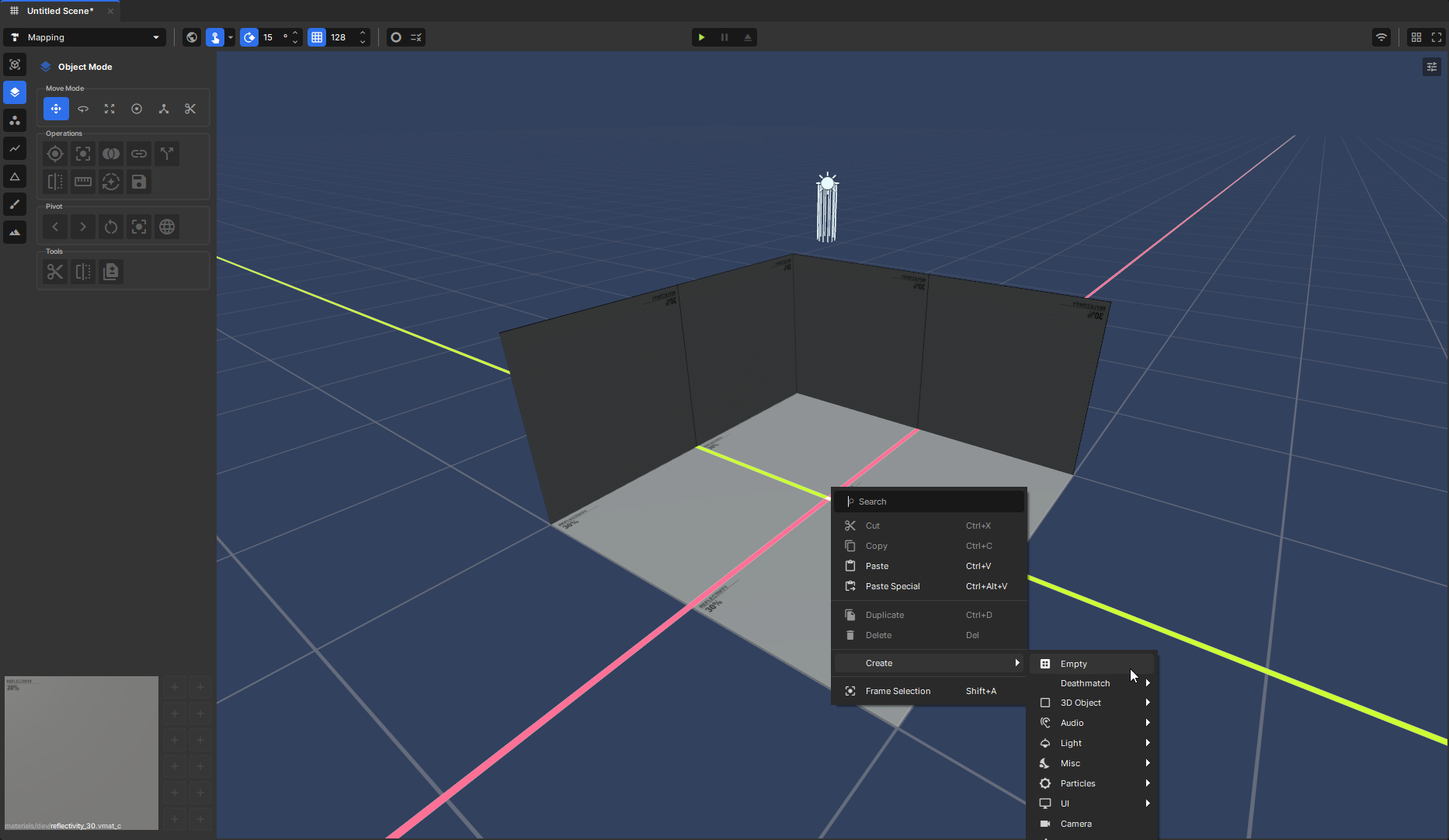
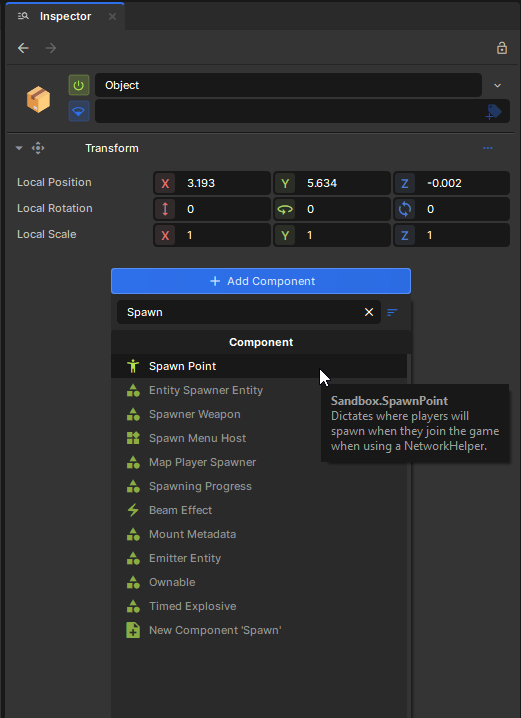
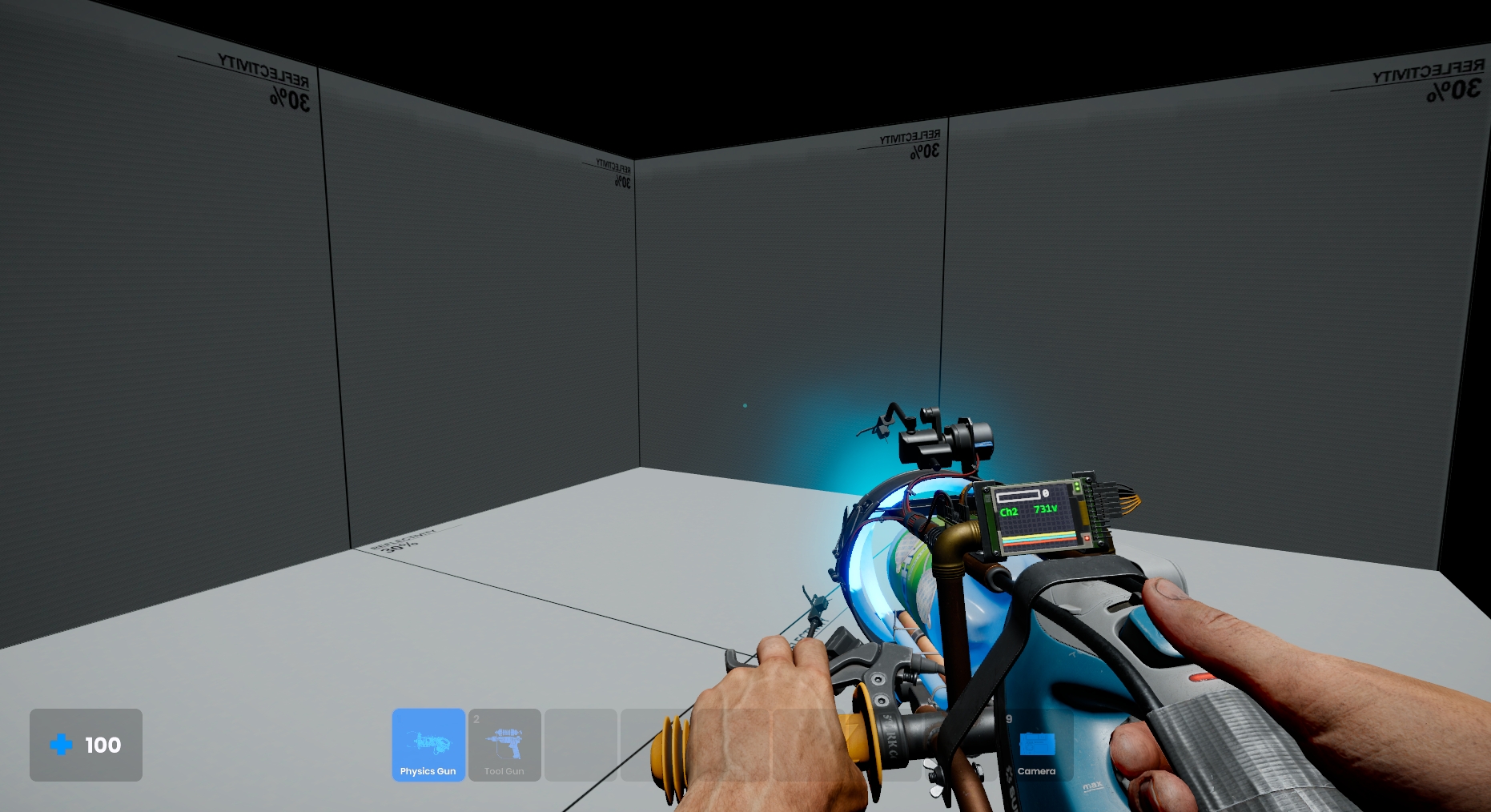
Right click the viewport and go down to Create Empty this will create an empty GameObject. We need to give it a component. In the Inspector with the GameObject select, Select Add Component and search for Spawn Point. Pressing play will now put you in game and at the location of the spawn point.