In this guide, we are going to be using a program called 'XOutput' to translate our DirectInput controls into XInput so that S&box can understand the inputs we're sending it (What a mouthful...). In my case, I am using a RadioMaster Pocket, so the instructions may vary a little bit based on what transmitter you're using.
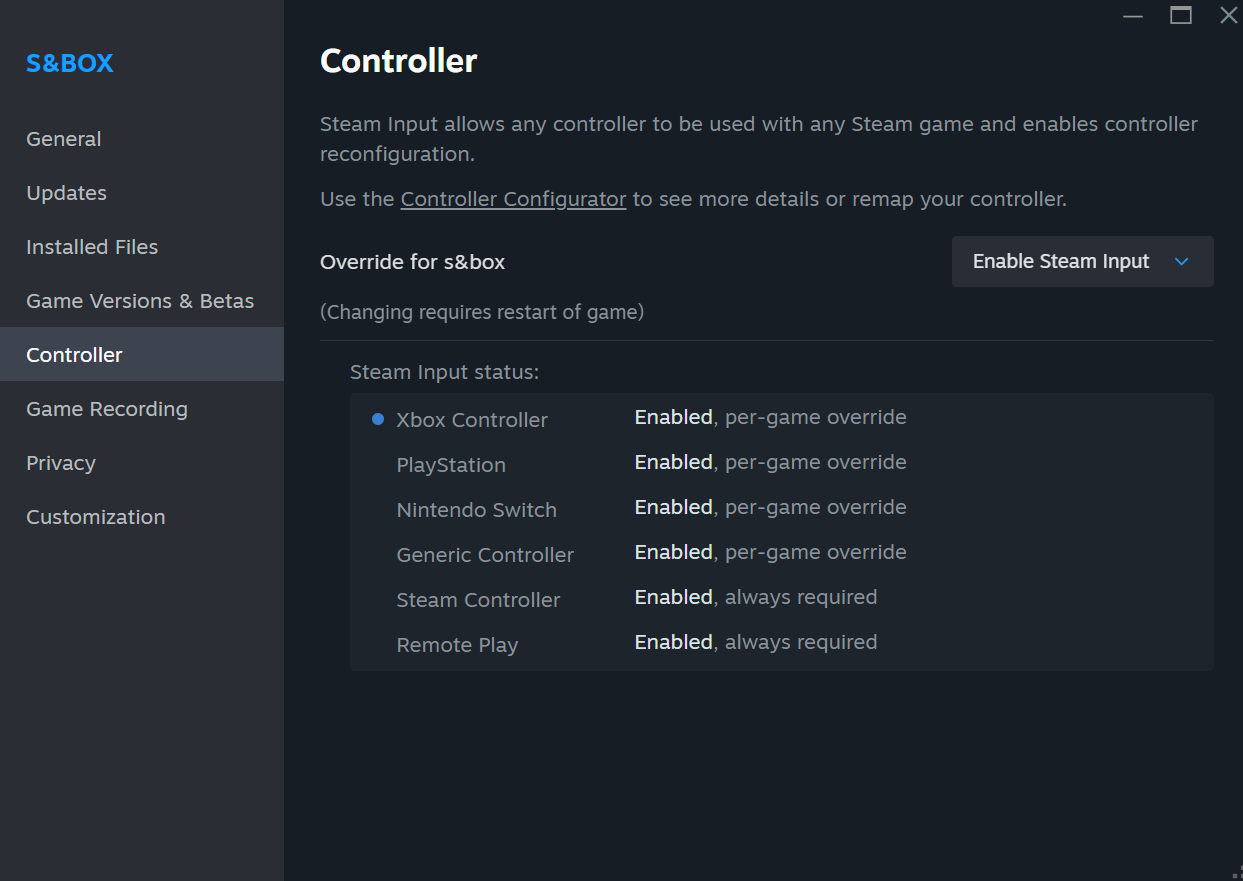
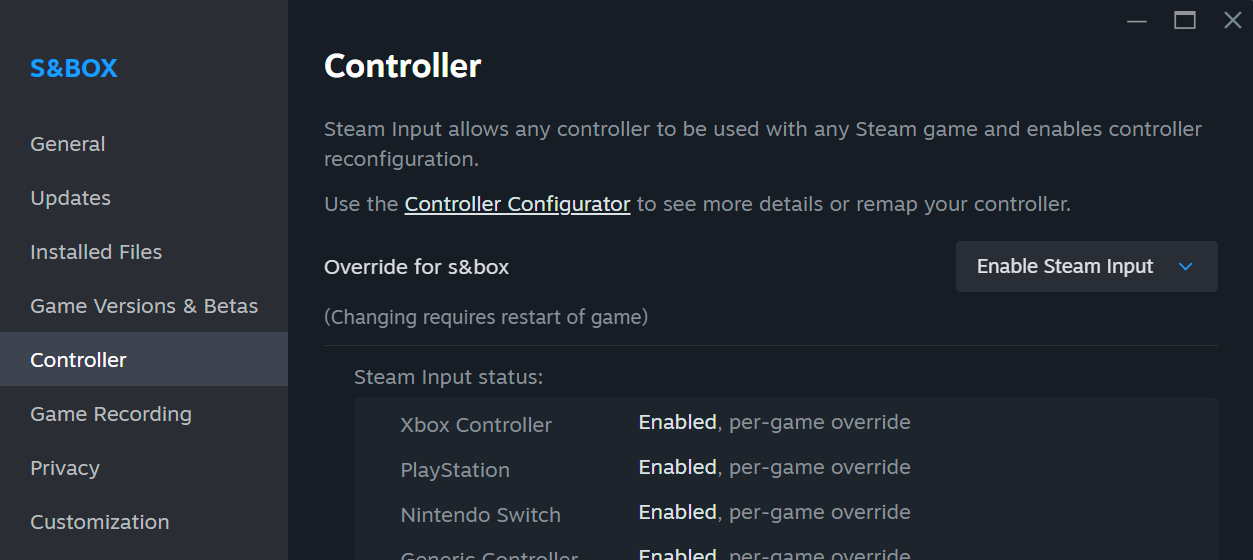
Firstly, plug in your FPV transmitter. Then, you need to make sure that Steam Input is enabled on S&Box. You can do this by right clicking the game in your steam library, and going to "Properties > Controller" and setting the "Override for s&box" option to "Enable Steam Input". Once that is set, you will need to download XOutput from its official github repo here:
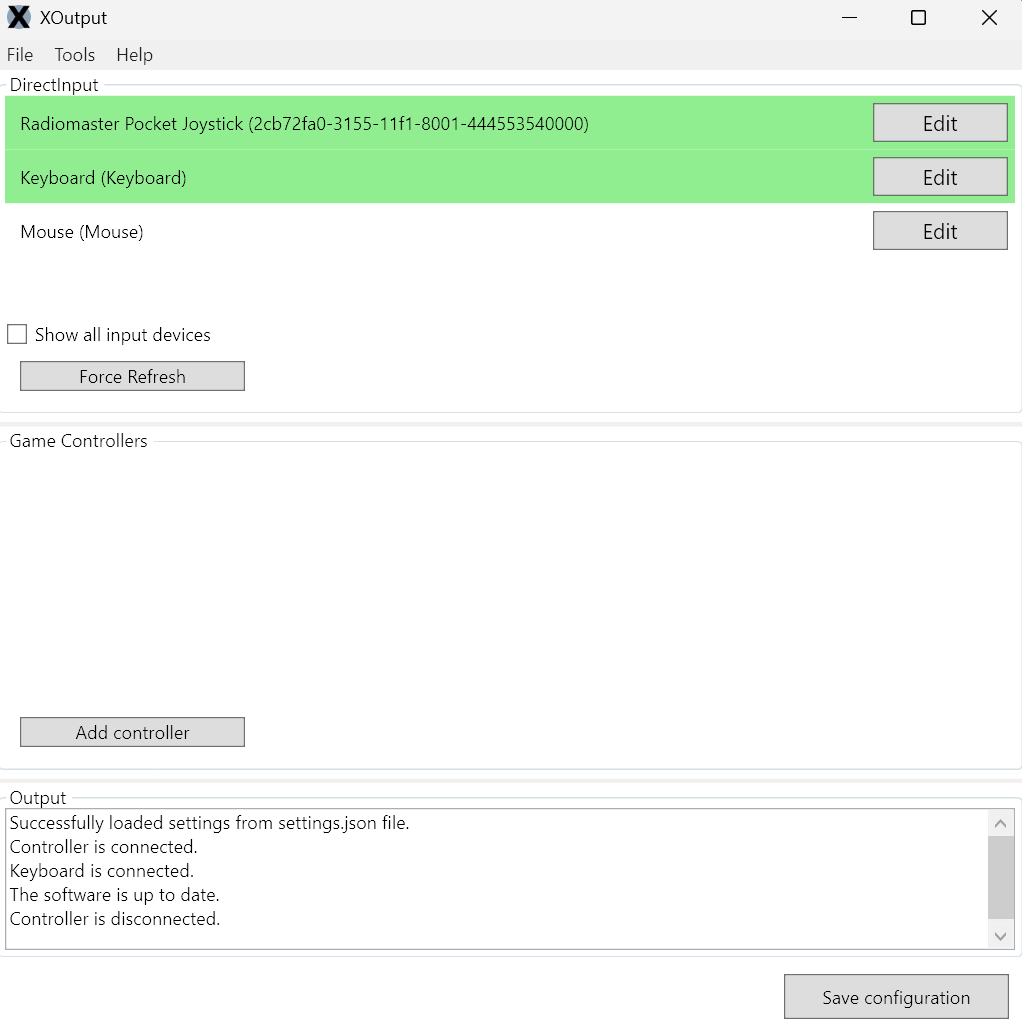
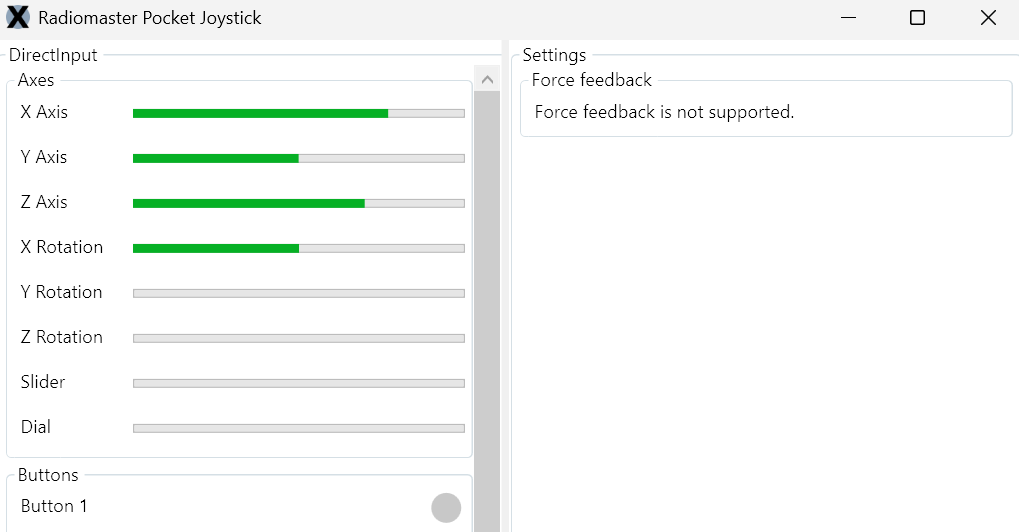
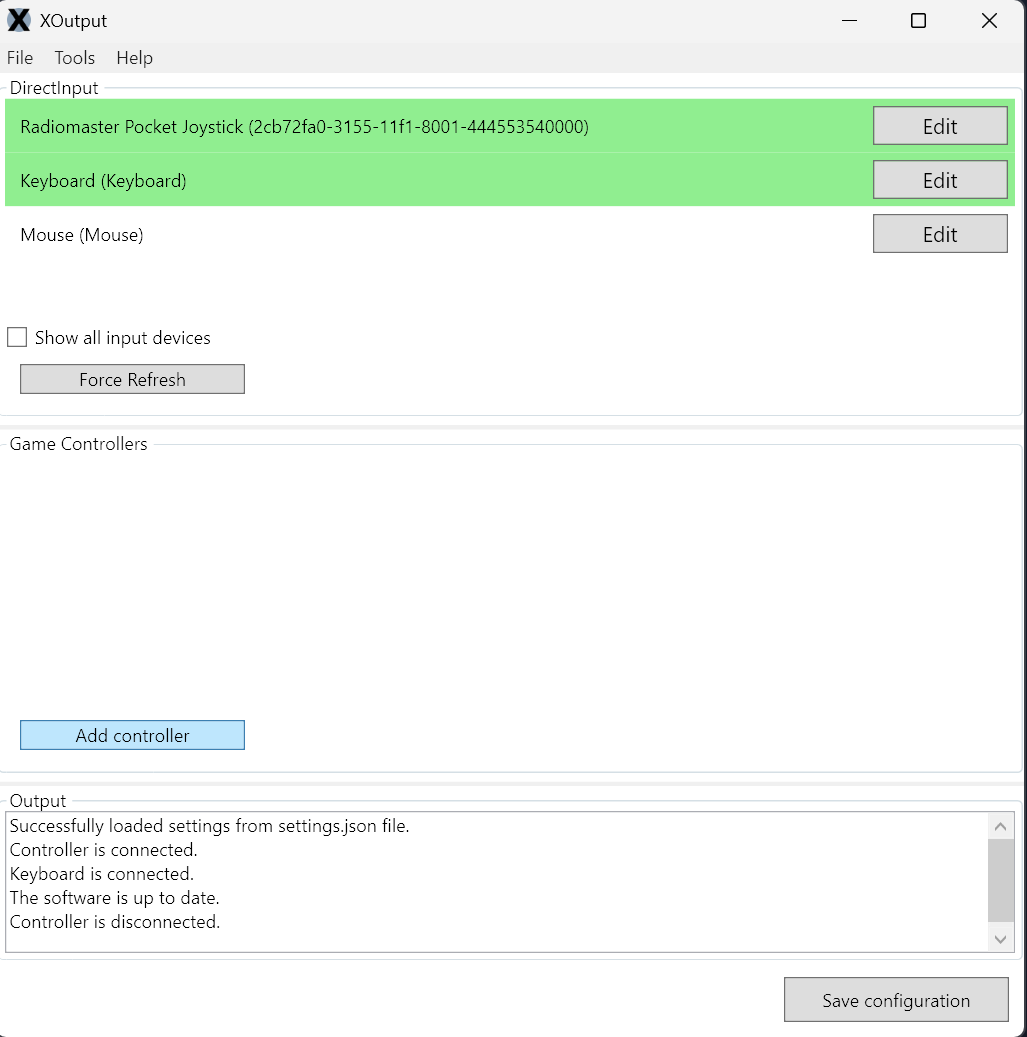
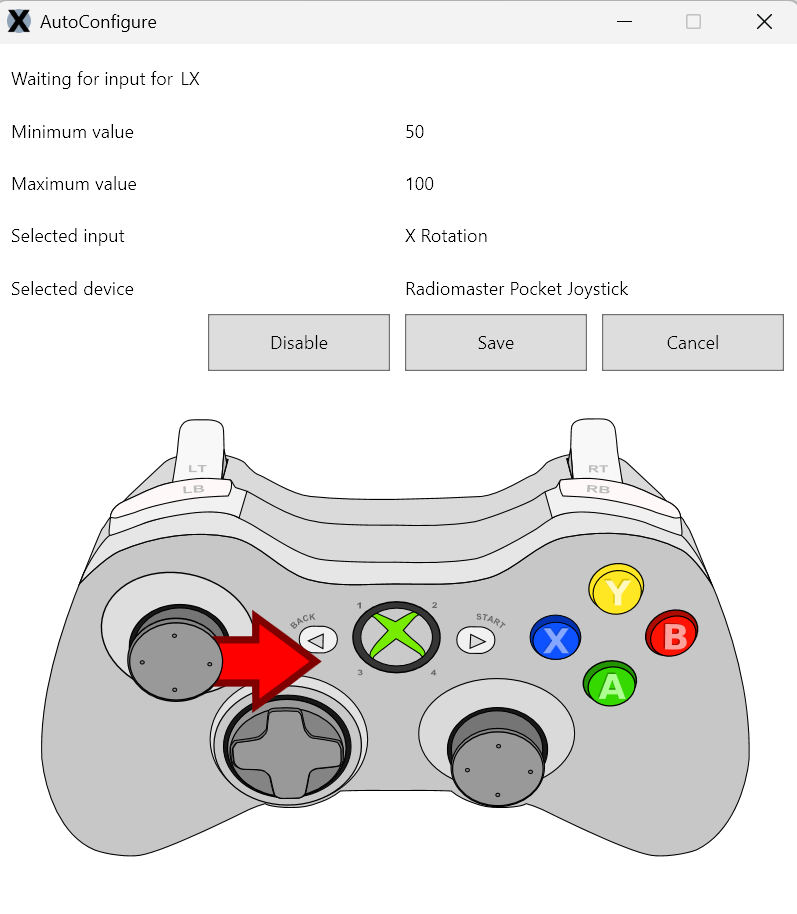
Move XOutput.exe to its own folder somewhere and run it. This will open up an simple GUI interface where we can configure the remote to act like a controller: Find your FPV transmitter and hit the "Edit" button to the right of it. Verify that your sticks and switches are working and being detected before proceeding: Once you verify that you are getting input, close this pop out window and go back to the main XOutput window. From here, select the "Add Controller" button in the "Game Controllers" section of the UI: A controller will appear in the list. You need to click on the "Edit" button to map your FPV Transmitter controls to it: This will pop out a menu for you to do that. To start, let's get the throttle controls setup. You need to find the LX, LY, RX, RY buttons and hit the "Configure" button to set each one up: Once you click configure, you can follow the pop up image to set the correct button mapping: Then hit "Save". Repeat for all sticks/buttons you want to map.
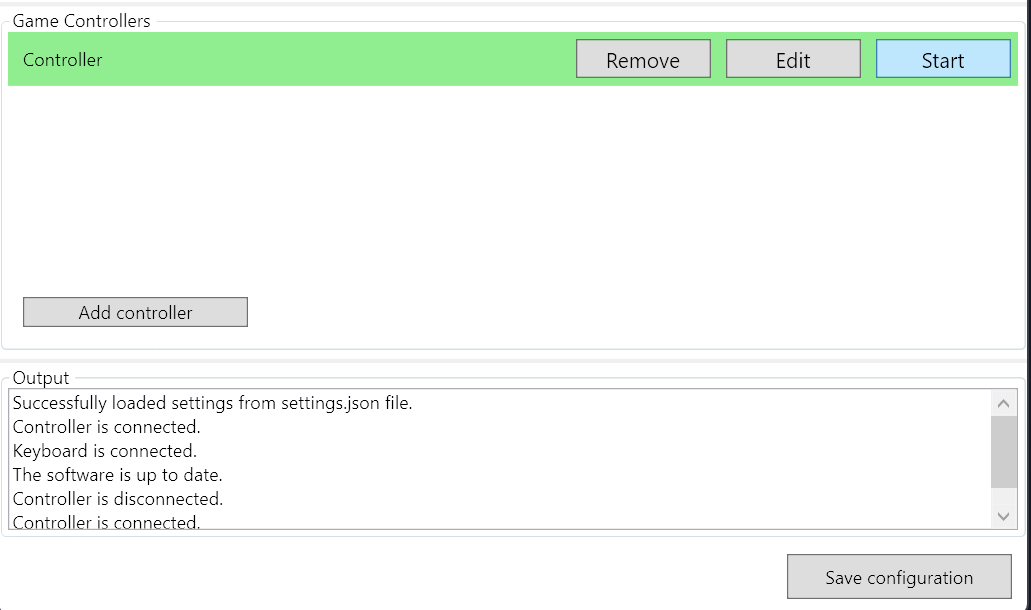
PLEASE NOTE: Acrobox has a default pitch inversion, so you'll want to click on the 'Invert' button for RY, or else you're going to have inverted pitch movement. This can be disabled in the [ E ] menu, but for simplicity sake - Just invert it here!!! The range will go from "0-100%" to "100-0%" to verify that it is inverted.Once this is all set, you can close this window and go back to the main XOutput window again. From here, all you need to do in XOuput is hit the 'Start' button on the controller, and hit the 'Save Configuration' button at the bottom: You can minimize XOutput to put it in the background for now.
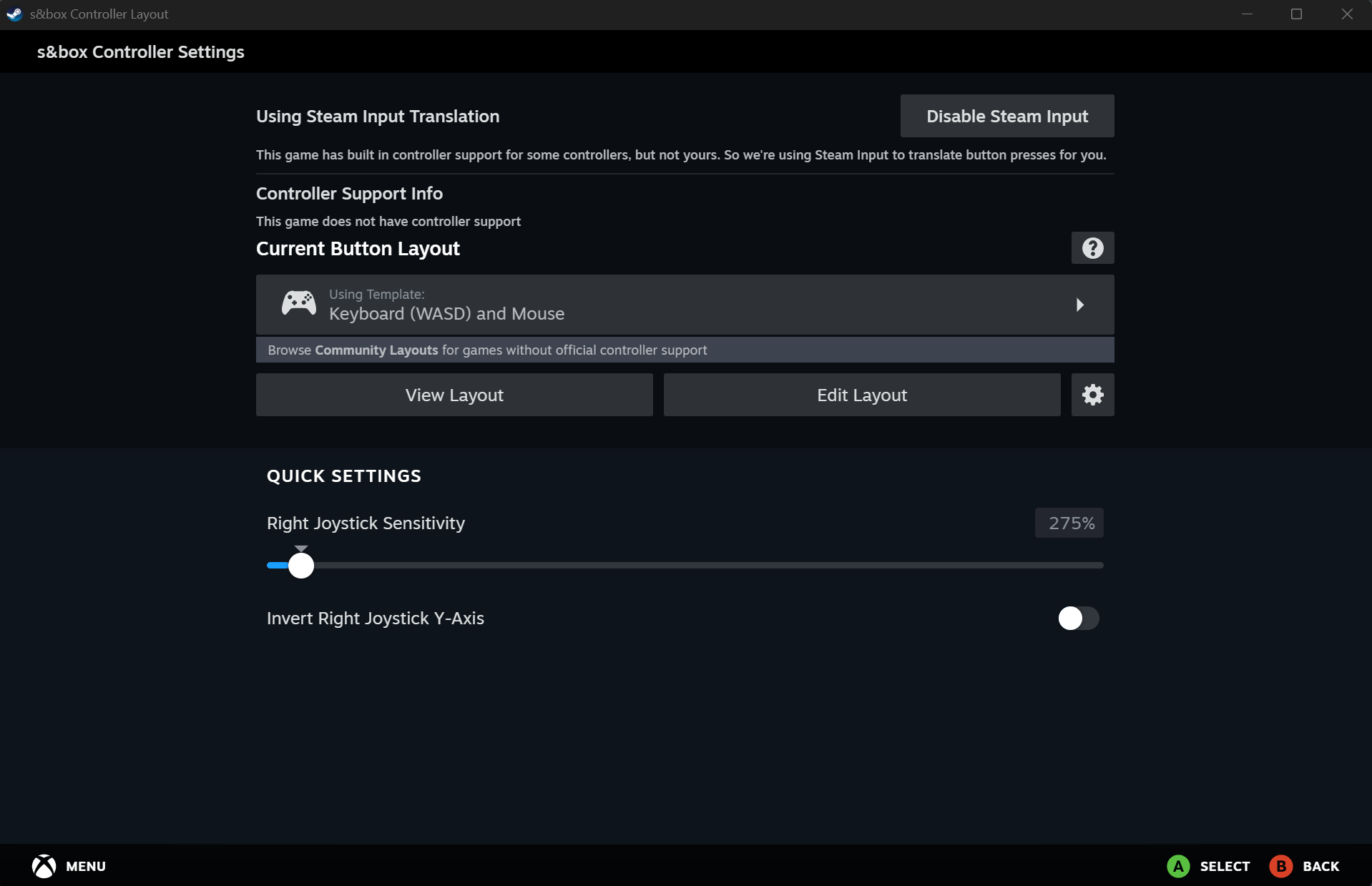
The next step you need to do is open up steam again, and open S&box's properties > Controller section again. This time, select the "Controller Configurator", and open it: This will open the controller layout panel: If you see "Keyboard (WASD) and Mouse" as your current button layout, you MUST change this!
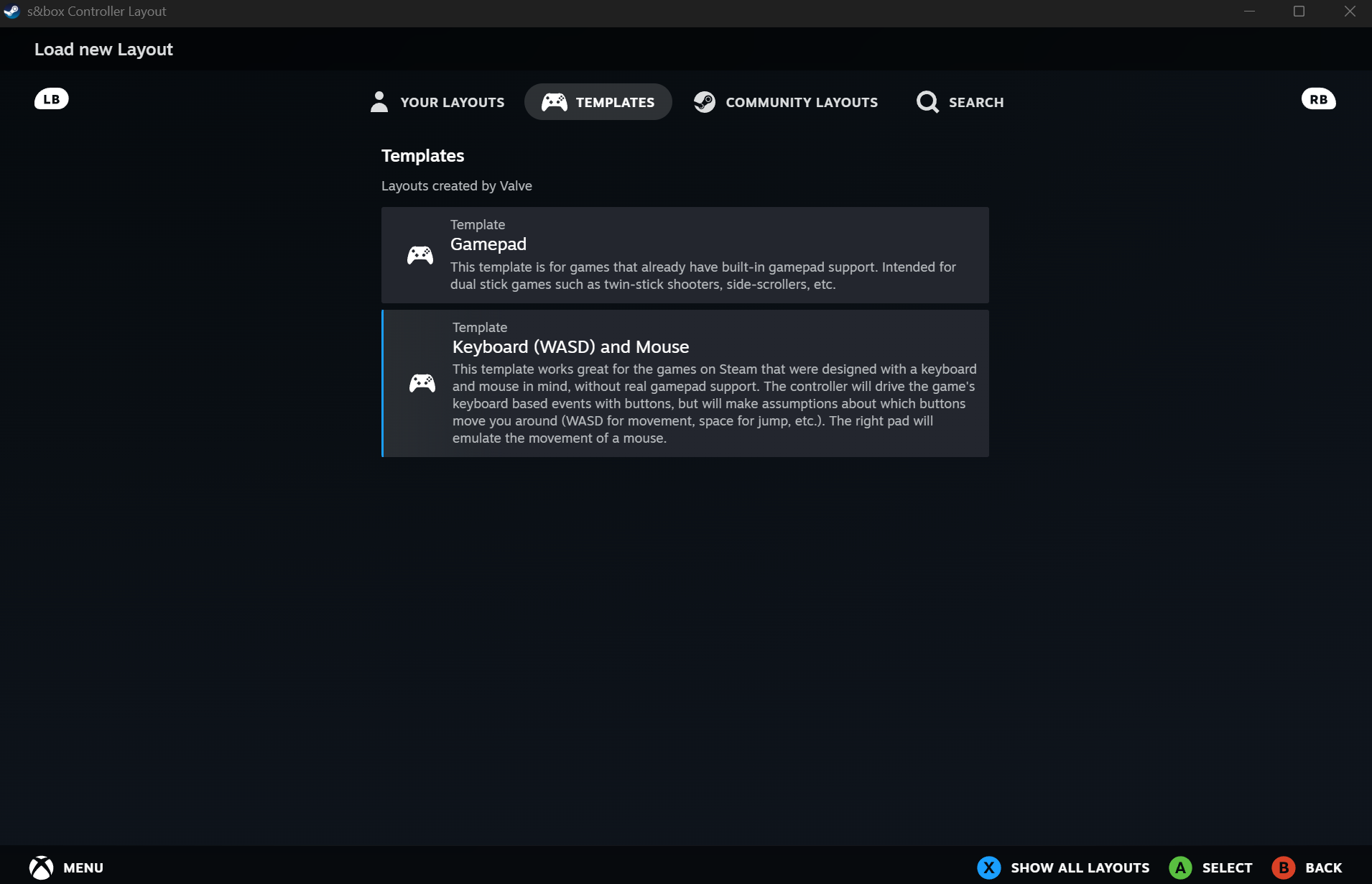
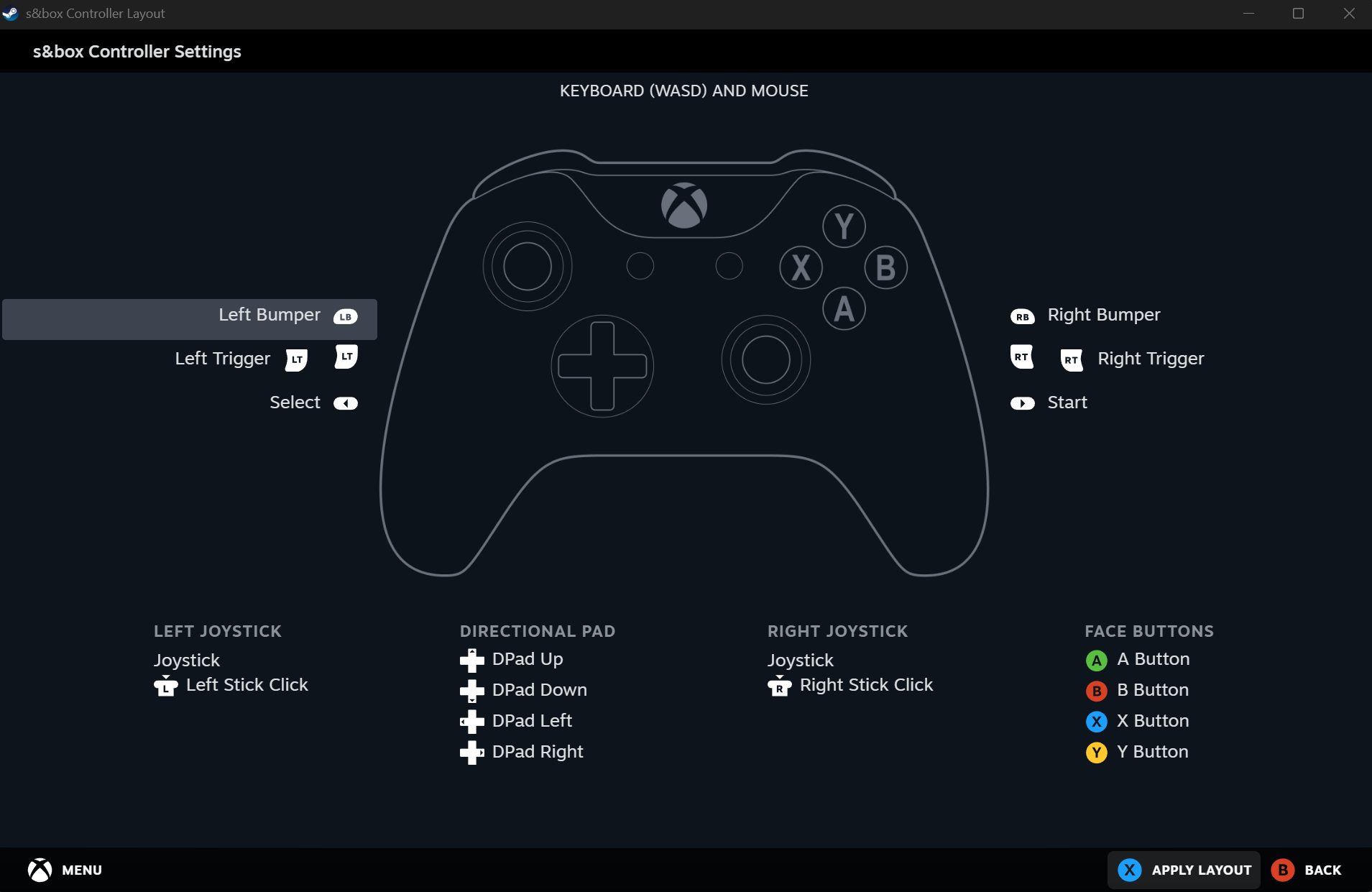
To change it, click on it, and set it to "Gamepad" under the 'Templates' tab: Once you click on it, it'll give you an overview of the controller button inputs:Make sure you hit 'Apply Layout' at the bottom right to apply this template.
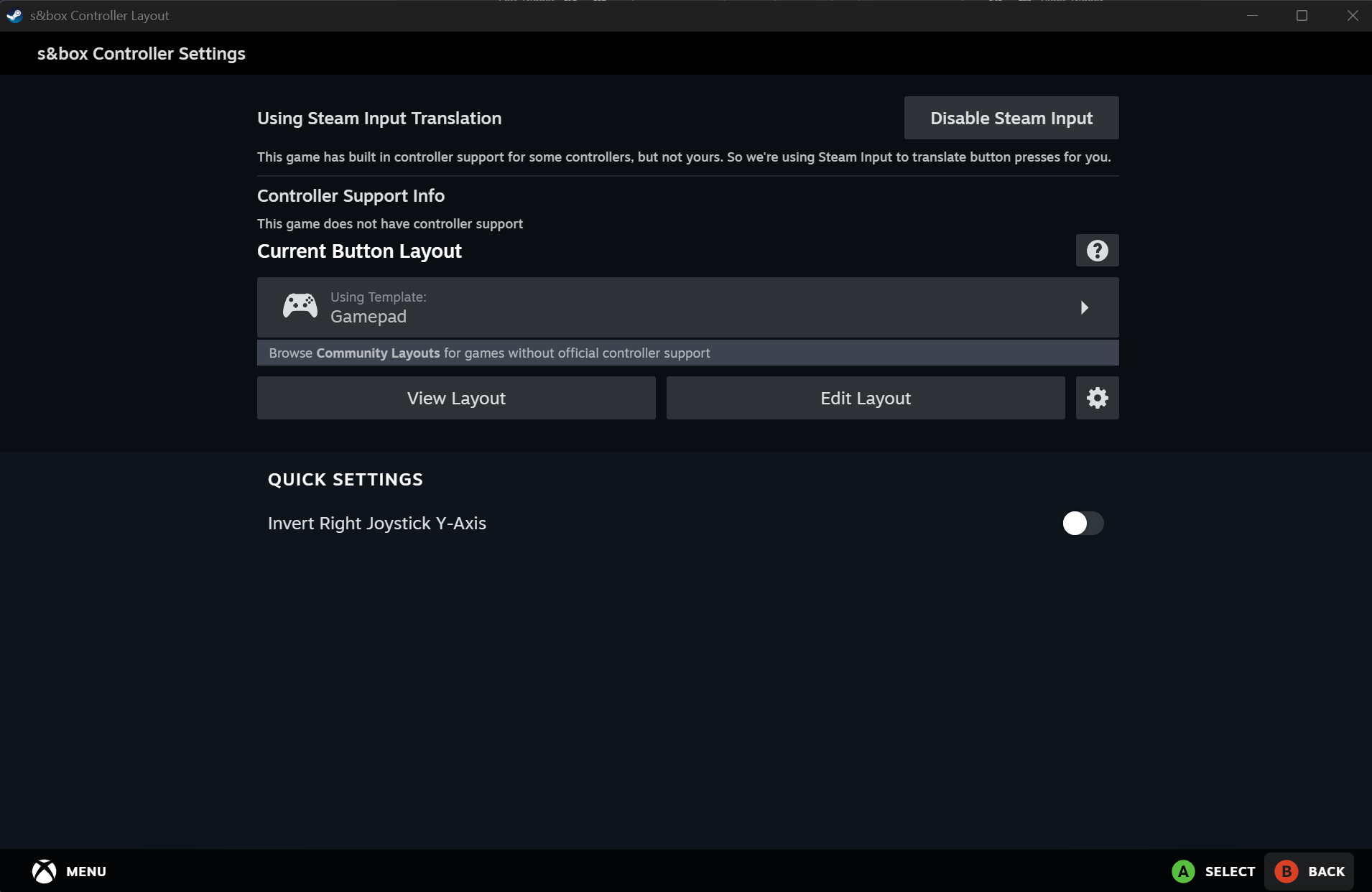
You'll now see that it is assigned the button layout of 'Gamepad':You may close this window now!
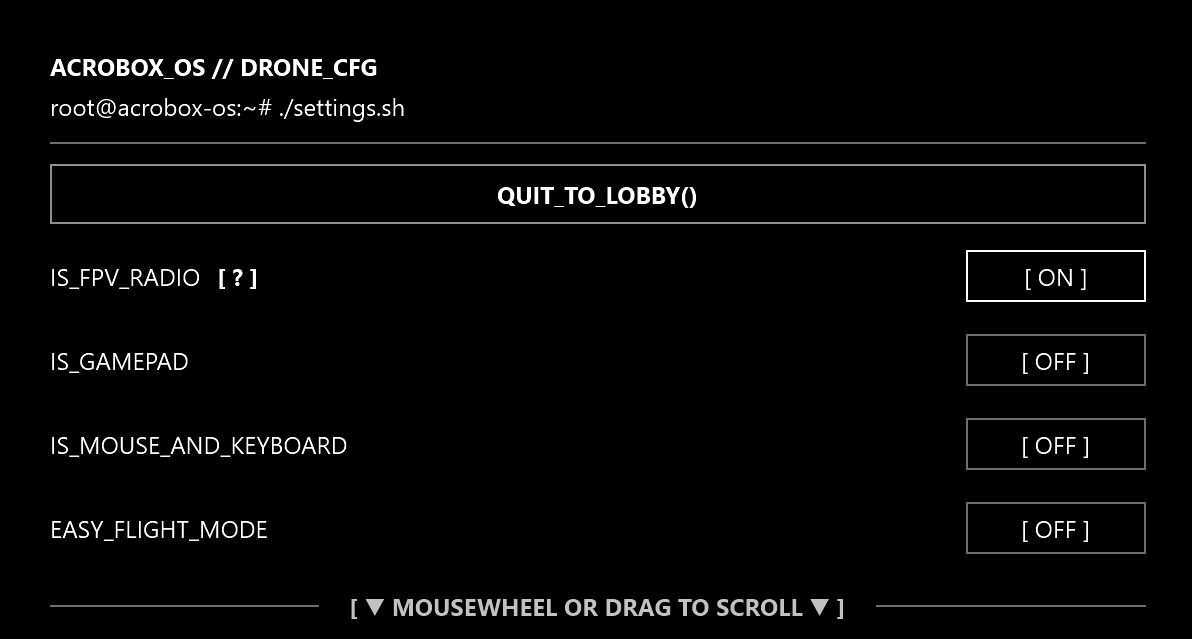
Lastly, all that you need to do is go into AcroBox, and ensure that "IS_FPV_RADIO" is enabled in the settings menu by pressing "E".
That should be all... The next time you want to play AcroBox and fly with an FPV Radio, all you have to do is open XOutput and it'll remember the configuration you set!
Happy flying!
people
Log in to reply
You can't reply if you're not logged in. That would be crazy.