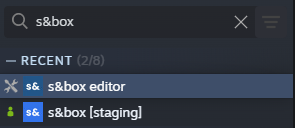
To access the s&box editor, you can sort by Tools in your Steam Library, or just search for it directly:
Using the Launcher
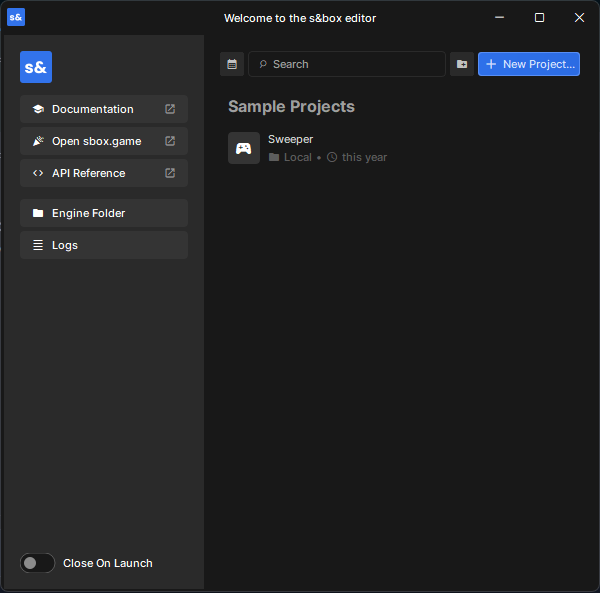
Once you open the s&box editor, you will first be met with the launcher:Here you can create a new project, load an existing project, or select a Sample Project.
There are also some helpful resources on the sidebar containing links to the official Documentation, Workshop, API Reference, and more!
Creating your First Project
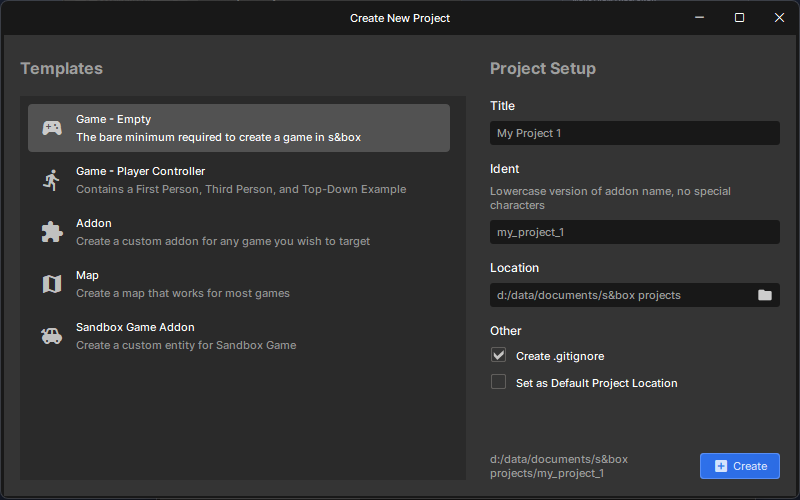
Once you click the "New Project" button you'll see a popup where you can choose a starting template for your project, and the name/path:The template descriptions are self-explanatory, So make sure you pick the one that best suits the project that you're trying to make. I'll be making an empty Game project for the sake of this tutorial.
The Title and Ident can be changed at any time, so don't worry if you use a placeholder name for now.
Testing your Project
Once you press Create, the engine will load the project and present you with the editor.
From here you can press the Play Button at the top (or use the F5 shortcut) to enter and exit Play Mode. This is how you can test your Game/Map/Addon exactly as it would play out when published to s&box.You can click on the objects in the scene to Inspect them and move/scale/rotate them around. Try messing about with the given scene and get comfortable with the workflow (like duplicating some of the existing objects, re-colouring them, dragging new objects into your scene via the Cloud Browser, ect)
Building on it
Once you've got a feel for the editor and your brand new project, try building on your knowledge by: