Blending Movement
Use Blend 1D when one value controls a gradual change. For locomotion, that value is often horizontal speed.
We'll extend the idle graph to blend between idle, walk, and run.
Add a speed parameter
In Parameters, use Add Control Parameter to add a Float named speed.
Set its range to 0 through 300, with a runtime Default Value of 0. This gives the example a useful preview slider; choose a range suitable for your game's movement.
speed is our own name, not a special engine input. Until code supplies it, the graph uses its default or saved renderer value.
Create the blend
Add Blend > Blend 1D. Drag speed from Parameters onto the graph, connect it to the blend's Parameter input, and connect the blend's result to Graph Output.
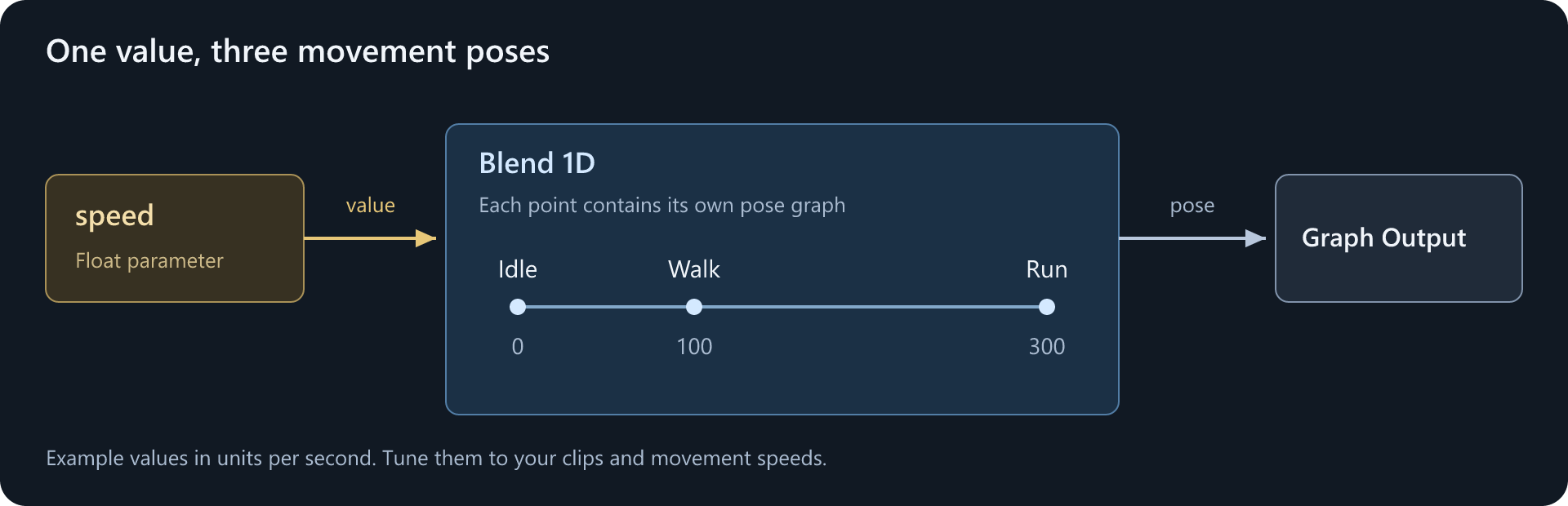
Double-click Blend 1D to edit its points. It starts with two; right-click the axis and choose Add Point Here for a third. Select each point and set its name and value:
| Point | Value | Animation |
|---|---|---|
| Idle | 0 |
idle.anim |
| Walk | 100 |
walk.anim |
| Run | 300 |
run.anim |
These speeds are example tuning values in units per second, not required settings.
Each point owns a small pose graph. Double-click the point and connect its clip to its own Graph Output:
Inside the Walk point:
Animation Clip (walk.anim) ---> Graph Output
Repeat for Idle and Run. Leave looping enabled on the clips and Blend 1D. Use the navigation breadcrumbs to return to the main graph. Remove the original idle node if it is now disconnected.
Try it
Change speed in the Parameters panel while the preview plays.
| Speed | Expected result |
|---|---|
0 |
Idle |
50 |
Halfway between idle and walk |
100 |
Walk |
200 |
Halfway between walk and run |
300 |
Run |
Blend 1D blends the neighboring points, rather than playing three unrelated animations at full weight.
It also synchronizes its input poses. For good walk/run blending, the clips should agree on the order of their movement phases, such as left-foot and right-foot contacts. Use matching sync events when their phase timing differs; synchronization cannot repair incompatible motion.
Smooth the value, not the gameplay
If movement values jump abruptly, insert a Spring:
speed ---> Spring ---> Blend 1D ---> Graph Output
Try Hertz 4 and Damping Ratio 1 as a starting point. A damping ratio of 1 settles without oscillation; higher hertz follows changes more quickly.
Your movement code can still respond immediately. Only the animation's speed input is smoothed. Avoid adding smoothing in both places unless that extra delay is intentional.
Connect movement
For a custom character, supply horizontal movement speed through Renderer.Animation.Parameters. Parameters and code has a small component you can use to test this.
For the standard PlayerController, name the parameter move_groundspeed instead of speed and use the controller's assigned renderer. The controller supplies that value to AG2 graphs automatically.
Blending poses does not itself move the GameObject. Start with in-place clips and let your movement code move the character. If the feet slide, check the clips' intended movement speeds and playback rates; a blend-point value alone does not make a stride cover that distance.