Your First Graph
Let's make a character play a looping idle. You do not need C# or a state machine for this.
Before you start
You need a skinned model, its .skel skeleton, and a compatible, non-additive .anim clip. Use an idle with more than one frame so you can see it playing.
If you only have a model and source animation files, follow skeletons and clips first. An animation listed in ModelDoc is not automatically an AG2 clip.
The examples call the clips idle.anim, walk.anim, run.anim, and wave.anim. These are example names for your own compatible clips, not built-in asset paths.
Create the graph
- In the Asset Browser, open your project's assets folder and choose Animation Graph from the create menu's Animation category.
- Choose your Target Model and Target Skeleton. The dialog can fill in the skeleton from the model or find a compatible one; check that it is the skeleton your clips use.
- Select your idle from the animation list. Its preview should look correct on the model.
- Click Create Graph... and save the
.aginside your project'sAssetsfolder.
The editor opens with the selected clip already connected:
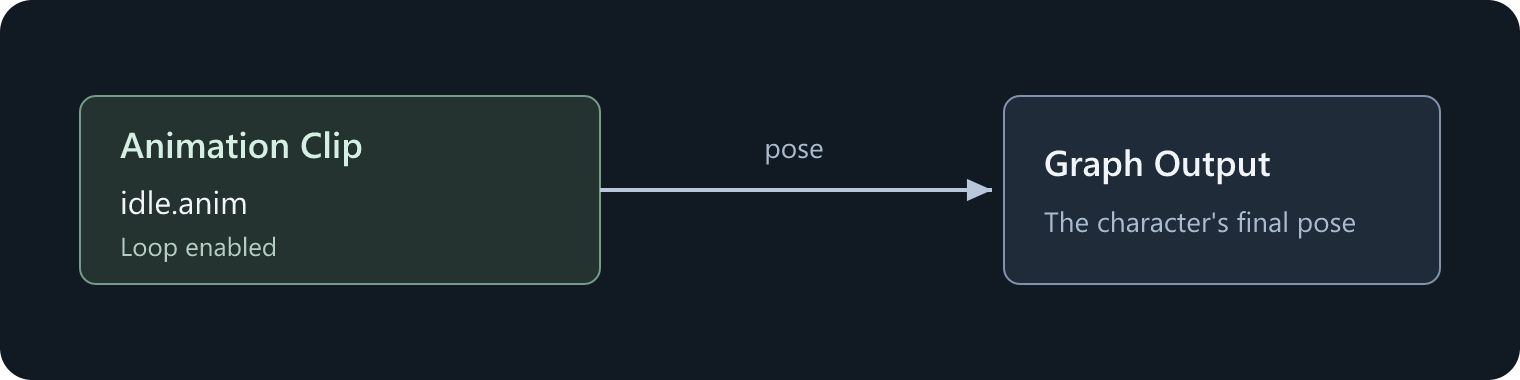
You can also create a graph without choosing a clip. It starts with Reference Pose, which holds the skeleton's reference pose rather than playing an animation.
Understand the editor
The Animation Clips panel lists clips for the selected skeleton. Drag a clip onto the graph to create an Animation Clip node. Right-click empty graph space to add other nodes, and drag between compatible sockets to connect them.
Select a node to edit its properties. On the idle clip, leave Loop enabled and Speed Multiplier at 1.
To play it backward, connect a true Bool to Play In Reverse rather than using a negative speed. This works for the direct-to-output setup here; Reversing Clips explains the restrictions when adding synchronized blends or layers.
The preview shows the result of the graph. If it is out of date, use View > Compile Preview. Check Compile Log for errors and warnings, and save the graph.
Put it on a character
- Add a SkinnedModelRenderer to a GameObject and assign the same model.
- Leave Use Anim Graph enabled.
- Assign your
.agin the renderer's Animation Graph picker.
Play the scene. The character should idle without any parameter code.
This renderer assignment overrides the model's default graph. Clearing the assignment restores the model default; it does not necessarily turn animation off.
If the character does not animate
| What you see | What to check |
|---|---|
| Reference pose | Is a clip selected and connected to Graph Output? Does Compile Log report a missing asset? |
| A correct but still pose | Is the clip single-frame? Is playback paused? |
| A clip missing from the list | Does it use the graph's exact .skel resource? Also check the list's filters. |
| Distorted or incorrectly sized animation | Check the skeleton, source rig, and import scale. |
| Correct preview, wrong result in the scene | Check the renderer's graph assignment and Use Anim Graph setting. |
Next, blend idle, walk, and run using a speed parameter.