Destinations
A painter always draws into something. The drawing code is identical whichever destination you use; what changes is where you get the painter, what its coordinates mean, and when the drawing shows up.
| Destination | How to get a painter | Coordinates |
|---|---|---|
| Panel | Override OnDraw( Painter painter ) |
Panel layout pixels, from the panel's top-left |
| Camera HUD | camera.BeginHud() |
Screen pixels, after post processing, below the UI |
| Camera overlay | camera.BeginOverlay() |
Screen pixels, above the UI |
| Texture | Painter.Begin( texture ) |
Texture pixels |
| Command list | Painter.Begin( commandList ) |
Screen pixels, or a rectangle you provide |
Painters you get from Begin* must be disposed to submit their drawing. Use using. A panel's painter is owned by the panel and doesn't need disposing.
Panels
Override OnDraw on any Panel. It's called every frame while the panel is visible, after the panel's own background and border are drawn and before its children. Coordinates start at (0, 0) in the panel's top-left, and painter.Bounds is the panel's size. They're the same units as your CSS layout, so a 100px wide panel has Bounds.Width of 100 regardless of screen resolution.
public class Minimap : Panel
{
	public override void OnDraw( Painter painter )
	{
		painter.Fill = Color.Black.WithAlpha( 0.5f );
		painter.Circle( painter.Bounds );

		painter.Fill = Color.Green;
		foreach ( var player in Scene.GetAllComponents<PlayerController>() )
		{
			painter.Circle( WorldToMap( player.WorldPosition ), 3 );
		}
	}
}
Painting respects the panel's CSS: opacity, transforms and overflow clipping all apply on top of the drawing. Custom drawing is a good fit for charts, gauges, minimaps and anything else that would need hundreds of panels to build from stylesheets.
Camera HUD and overlay
Every CameraComponent has two painters. BeginHud draws after post processing but underneath the UI. BeginOverlay draws above everything, which makes it ideal for debug overlays. Coordinates are pixels, starting at the camera's top-left, and painter.Bounds is the viewport size.
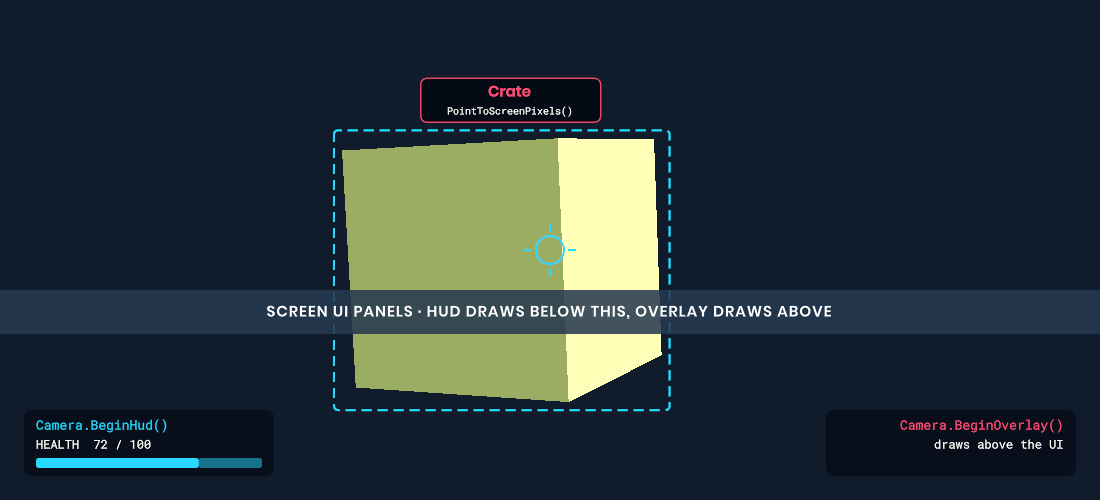
Their drawing is cleared at the start of every frame, so paint every frame from an update method:
protected override void OnUpdate()
{
	using var painter = Scene.Camera.BeginHud();

	painter.Fill = Color.White;
	painter.Stroke = Stroke.Solid( Color.Black, 1 );
	painter.Circle( painter.Bounds.Center, 3 );
}
Both painters are shared: every component that calls BeginHud appends to the same frame, and each call must be disposed before the next one starts.
To draw something tracking a world position, paint from OnPreRender so the camera and object transforms are final for the frame:
protected override void OnPreRender()
{
	var camera = Scene.Camera;
	var point = camera.PointToScreenPixels( Target.WorldPosition, out var behind );
	if ( behind ) return;

	using var painter = camera.BeginOverlay();

	painter.TextStyle = new TextStyle { FontSize = 14, Color = Color.White, Alignment = TextFlag.CenterBottom }
		.WithShadow( Color.Black, blur: 2 );

	painter.Text( Target.Name, new Rect( point.x - 100, point.y - 40, 200, 20 ) );
}
Textures
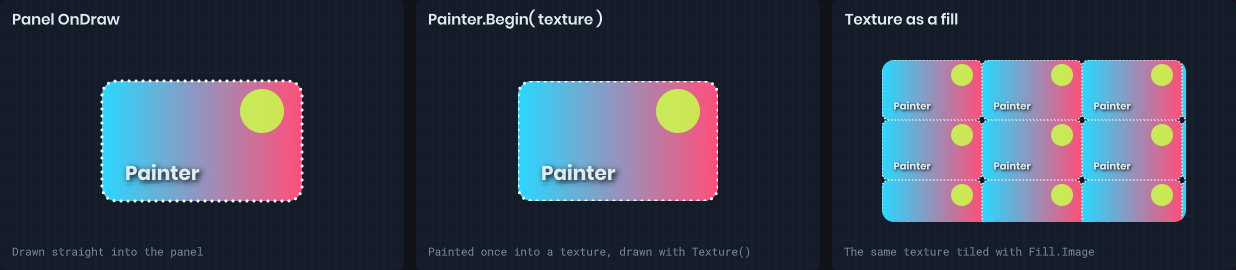
Painter.Begin( texture ) paints into a render target texture. This is useful for baking a complex drawing once and then displaying it as an image, or for generating textures at runtime.
var texture = Texture.CreateRenderTarget()
	.WithSize( 256, 256 )
	.WithFormat( ImageFormat.RGBA8888 )
	.Create();

using ( var painter = Painter.Begin( texture ) )
{
	painter.Clear( Color.Transparent );

	painter.Fill = Fill.RadialGradient( Color.White, Color.Transparent );
	painter.Circle( new Vector2( 128, 128 ), 120 );
}
Existing pixels are kept unless you call Clear, so you can paint incrementally. Disposing the painter submits the drawing. Once painted, the texture can be used anywhere a texture can: a panel's background image, a material, or another painter's fill.
Call texture.GetBitmap() if you need to read the pixels back on the CPU.
Command lists
For full control over when drawing happens, paint into a Command List and attach it to a camera at whichever stage you like.
Rendering.CommandList commands;

protected override void OnEnabled()
{
	commands = new Rendering.CommandList( "My Drawing" );
	Scene.Camera.AddCommandList( commands, Rendering.Stage.AfterUI );
}

protected override void OnUpdate()
{
	commands.Reset();

	using var painter = Painter.Begin( commands );
	painter.Fill = Color.Red;
	painter.Rect( new Rect( 10, 10, 100, 100 ) );
}
By default the bounds are the screen. Pass a rectangle to Begin to use different bounds. Finish painting before you record other commands into the same list.
3D lines and billboards
Camera and command list painters can also draw simple world-space primitives. These ignore the 2D transform and clip, but use Opacity and BlendMode.
using var painter = Scene.Camera.BeginHud();

// A 2px screen-width line between two world points, hidden behind geometry
painter.Line3D( start, end, Color.Yellow, thickness: 2 );

// A line 4 units thick in world space, always visible
painter.Line3D( start, end, Color.Red, thickness: 4, ignoreDepth: true, worldSpace: true );

// A camera-facing sprite, 32 units across
painter.Billboard( position, new Vector2( 32 ), texture, Color.White );
Line3D thickness is in screen pixels unless worldSpace is true. Billboard size is in world units unless worldSpace is false, in which case it's pixels. Both test against scene depth unless ignoreDepth is set, and neither writes depth.