Shapes
Every shape uses the current Fill and Stroke. Closed shapes are filled and then stroked around their edge. Open shapes like lines, arcs and curves only use the stroke.
All sizes are in drawing pixels. Angles are in degrees, clockwise, starting from the right.
Rectangles
painter.Fill = Color.White;
painter.Rect( new Rect( 10, 10, 200, 100 ) );

// One radius for every corner
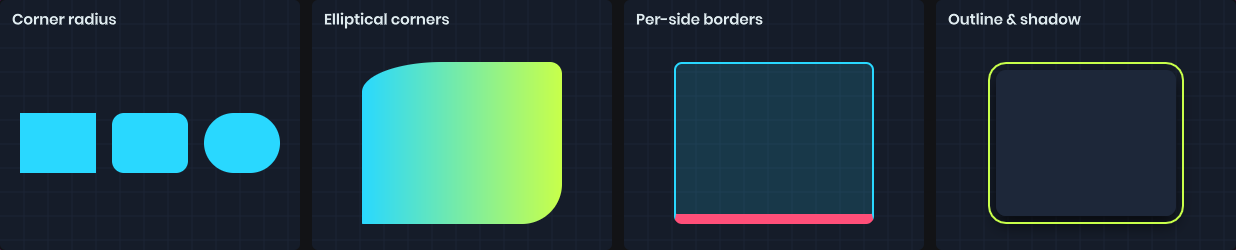
painter.Rect( rect, 12 );

// Elliptical corners: top-left, top-right, bottom-right, bottom-left
painter.Rect( rect, new Painter.CornerRadii( new Vector2( 30, 10 ), new Vector2( 10 ), new Vector2( 0 ), new Vector2( 10 ) ) );
Radii that are too big for the rectangle are clamped, the same way CSS does it.
For a CSS-style box with a different border on each side, there's an overload that takes border widths and colors. Border widths are left, top, right, bottom.
painter.Rect( rect, new Vector4( 1, 1, 1, 4 ), Color.Gray, Color.Gray, Color.Gray, Color.Red, 6 );
Outline draws a rectangular outline using the stroke. At zero offset its inner edge follows the rectangle; positive offsets push it outward.
painter.Stroke = Stroke.Solid( Color.Cyan, 2 );
painter.Outline( rect, cornerRadius: 8, offset: 4 );
RectShadow draws a soft drop shadow (or an inset shadow) for a rectangle.
painter.RectShadow( rect, corners: 8, color: Color.Black.WithAlpha( 0.6f ), blur: 12, offset: new Vector2( 0, 4 ) );
Circles, rings, arcs and pies
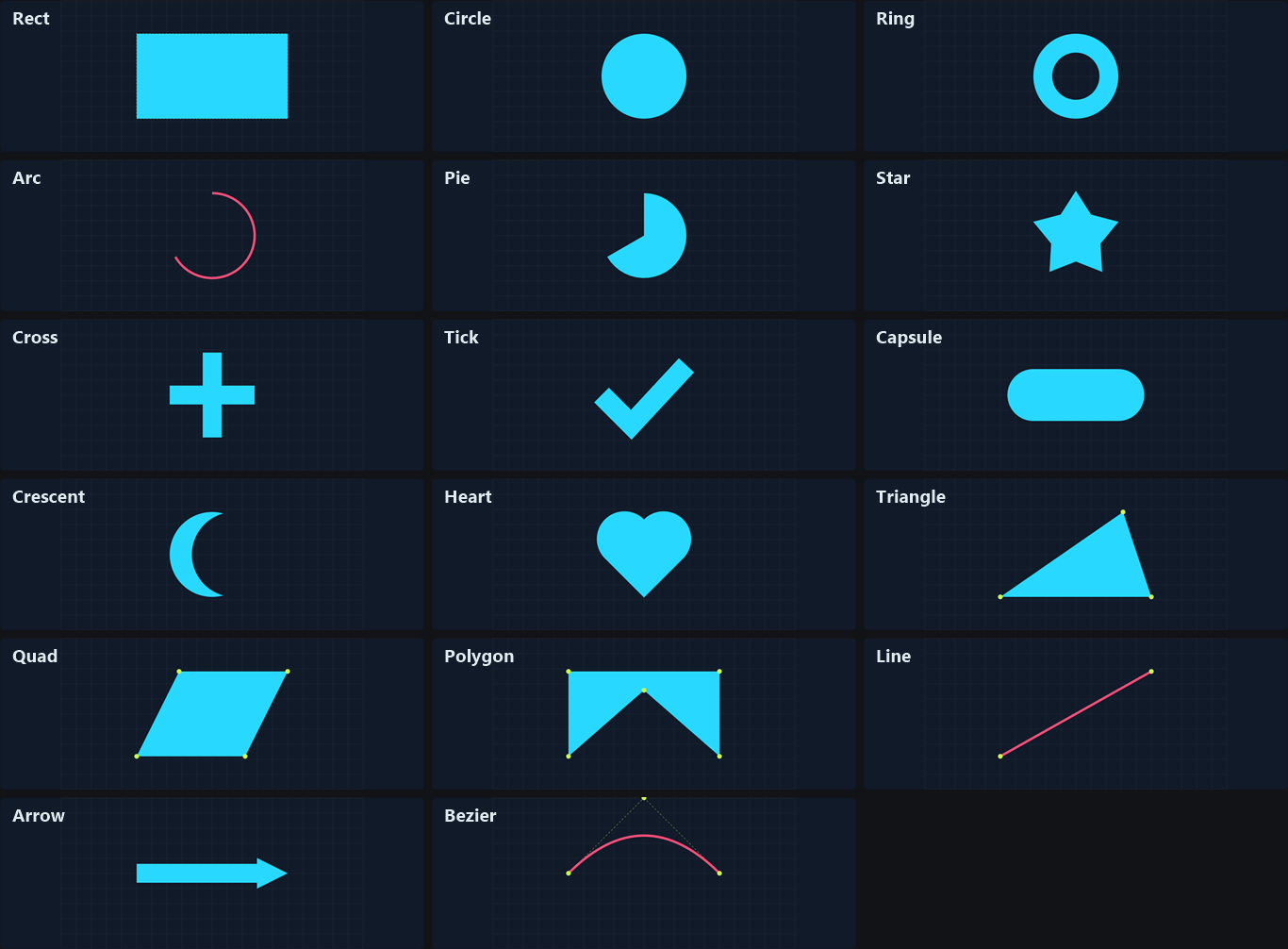
painter.Circle( center, 40 );                       // radius
painter.Circle( new Vector2( 100, 50 ), new Vector2( 80, 40 ) ); // ellipse from center and size
painter.Circle( rect );                             // ellipse fitted to a rectangle

painter.Ring( center, innerRadius: 30, outerRadius: 40 );
painter.Ring( center, 30, 40, startAngle: 0, sweepAngle: 270 );  // a ring sector

painter.Arc( center, radius: 40, startAngle: -90, sweepAngle: 180 ); // stroke only
painter.Pie( center, radius: 40, startAngle: 0, sweepAngle: 90 );
Negative sweeps go counter-clockwise. A sweep of 360 or more draws a full circle with no seam. Arcs are a good fit for radial progress bars:
painter.Stroke = Stroke.Solid( Color.White.WithAlpha( 0.2f ), 6 );
painter.Arc( center, 40, -90, 360 );

painter.Stroke = Stroke.Solid( Color.Cyan, 6 ).WithCap( Stroke.LineCap.Round );
painter.Arc( center, 40, -90, 360 * progress );
Polygons
painter.Triangle( a, b, c );
painter.Quad( a, b, c, d );                // vertices in perimeter order
painter.Polygon( [a, b, c, d, e, f] );     // any number of vertices, concave is fine
Polygon uses the even-odd fill rule, so a self-intersecting outline leaves holes. The closing edge is implied. To draw only an outline, set Fill.None.
Lines and curves
Lines are open, so they only use the stroke. Their width comes from Stroke.Width.
painter.Stroke = Stroke.Solid( Color.White, 3 );

painter.Line( from, to );
painter.Line( [a, b, c, d] );          // connected segments, joined using Stroke.Join
painter.LineSmooth( [a, b, c, d] );    // a smooth curve through the points

painter.Bezier( from, control, to );                // quadratic
painter.Bezier( from, control1, control2, to );     // cubic
There's no vertex limit on Line and Polygon, so you can draw charts and plots directly:
Span<Vector2> points = stackalloc Vector2[64];
for ( int i = 0; i < points.Length; i++ )
{
	float t = i / (points.Length - 1f);
	points[i] = new Vector2( t * bounds.Width, bounds.Height * (0.5f + MathF.Sin( t * 10 + Time.Now ) * 0.4f) );
}

painter.Line( points );
Symbols
A few common symbols are built in, so you don't have to construct them from polygons.
painter.Star( center, bodyRadius: 20, spikeLength: 20, points: 5 );
painter.Cross( center, width: 6, length: 40 );
painter.Tick( center, width: 6, length: 40 );
painter.Arrow( from, to, width: 6, headSize: 20 );
painter.Capsule( from, to, fromRadius: 10, toRadius: 10 );
painter.Crescent( center, radius: 30, cutoutRadius: 26, cutoutOffset: new Vector2( 12, -4 ) );
painter.Heart( center, size: 50 );
A Star with zero spike length is a regular polygon. A Capsule with different radii tapers between the two ends.
Images
Texture draws a texture into a rectangle, ignoring the fill and stroke. For more control over tiling, sizing and offset, use an image Fill with Rect instead.
painter.Texture( texture, rect );
painter.Texture( texture, rect, Color.Red );  // tinted